Choose a label printer for the labels you actually need: a short name on a folder spine, two lines on a box or a list of an organiser’s contents all need different amounts of space. Start by deciding what you plan to label; that will help you work out whether a separate device is worthwhile.
This article contains affiliate links. TeraNews may earn a commission on purchases made through them, at no additional markup to you.
First decide how many labels you need
For a few permanent labels, ordinary self-adhesive stickers and a pen may be enough. A printer is worth considering if you regularly change what is in your boxes, add folders or want a consistent look across many labels. Make a short list of the labels you expect to use before buying. It can show whether this is a recurring task or something that will be over after one evening.
Sort labels by purpose. A folder spine may need only a name, a box may need a name and a clarification, and an organiser may need several separate short labels. Do not choose a width based on the shortest word. Take the longest label you need and decide whether line breaks, abbreviations or rotated text are acceptable. If a narrow label forces you to remove useful information, that format may not suit your storage system.
Think about where labels will be used. Labels inside a closed cupboard and labels near a window are different jobs. If they need to last under exposure to light or heat, first consider the printing method and material, then the app and the device’s appearance.
Cartridge-free thermal printing does not make a label permanent
Brother explains that direct thermal printing forms an image on heat-sensitive material. In the same technical guide, the manufacturer warns that sunlight and heat can cause fading. So the absence of replaceable ink cartridges does not prove that a finished label will be durable.
For longer-lasting labels, consider thermal transfer printing separately. Brother explains that it uses a ribbon, and that the label material and ribbon should be chosen for the conditions of use. This is a factor when choosing consumables, not a promise that every such label will withstand every condition. If a label needs to last, look for information about the specific combination of media, ribbon and storage conditions.
As Phomemo describes its D30 thermal printing, “inkless” does not mean there are no consumables: you still need suitable label stock. Assess the printer, its software and the labels available as a set.
Check label size separately from the printer’s size
Measure the surface you plan to label and make a paper template. Write the actual text at the intended size, put it on a folder or box, and view it from a normal distance. This can help you define the format you need before buying, but it does not confirm what a particular printer can produce.
Do not confuse media width with printable width. You need information about both: the first helps you choose consumables; the second tells you whether the text will fit. If a seller gives only one measurement, check what it refers to. Also check the length of individual labels and whether the format you need is supported.
Check how finished labels are separated, too. TechRadar’s label-printer guide notes the difference between automatic cutting and manual separation. This may be a minor point for a few labels. If you will make many individual labels, first check the steps involved and how cutting works on the model you are considering.
Check the app before ordering
TechRadar recommends checking app compatibility with the specific version of Android or iOS, and notes that some devices use an app instead of their own keyboard and screen. So “wireless” or “for smartphones” is not enough. Find the app name for the model, open its app-store page and compare its requirements with your phone.
For labels in languages that use non-Latin scripts, check support in the editor and available fonts. See whether it can handle the number of lines you need, change text size and save reusable layouts. These are things to verify, not established features of every device listed below. Try recreating a real example, such as “Documents / flat”, rather than judging the app by decorative templates in a product image.
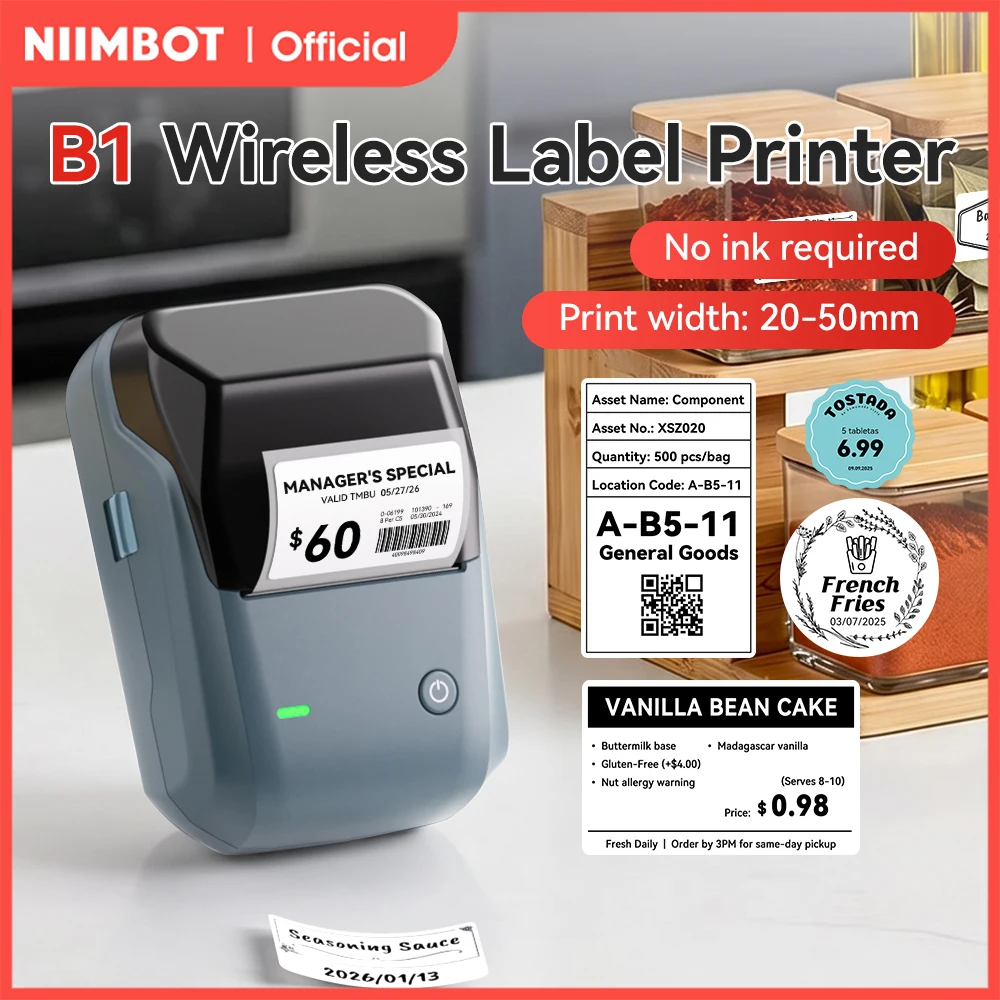
If you plan to print from a computer, look for confirmation for your specific operating system and connection method. The seller’s B1 listing mentions smartphones and PCs, but that heading alone does not establish support for your computer. Find out what software is required and whether the claimed feature applies to the particular version on offer. If you cannot confirm it, do not base your purchase on that capability.
Consumables and what is in the box
TechRadar’s guide says tape compatibility needs to be checked separately: a label roll that looks suitable may not be supported by the printer. Before ordering, look for replacement consumables that explicitly name your model. Compare the format and dimensions, and ask for confirmation if the description is unclear. Similar-looking rolls are not enough to establish compatibility.
Check what is included separately from what the device can do. Mentioning labels in a product title does not establish how many rolls are included, their size or the contents of the specific offer. Open the description for the selected option and make sure it includes the printer; then check whether starter media is included. Keep track of the exact option so you do not assume that one bundle’s contents apply to another.
The offers below are seller listings on AliExpress. Their descriptions indicate the sellers’ stated use cases, but do not establish verified print-area dimensions, app requirements or cutting details for all four models. Treat them as options to compare against your needs, not as a quality ranking. A shop name alone also does not verify that the seller is authorised by a brand.
Four options for different tasks
Marklife P15: short text labels
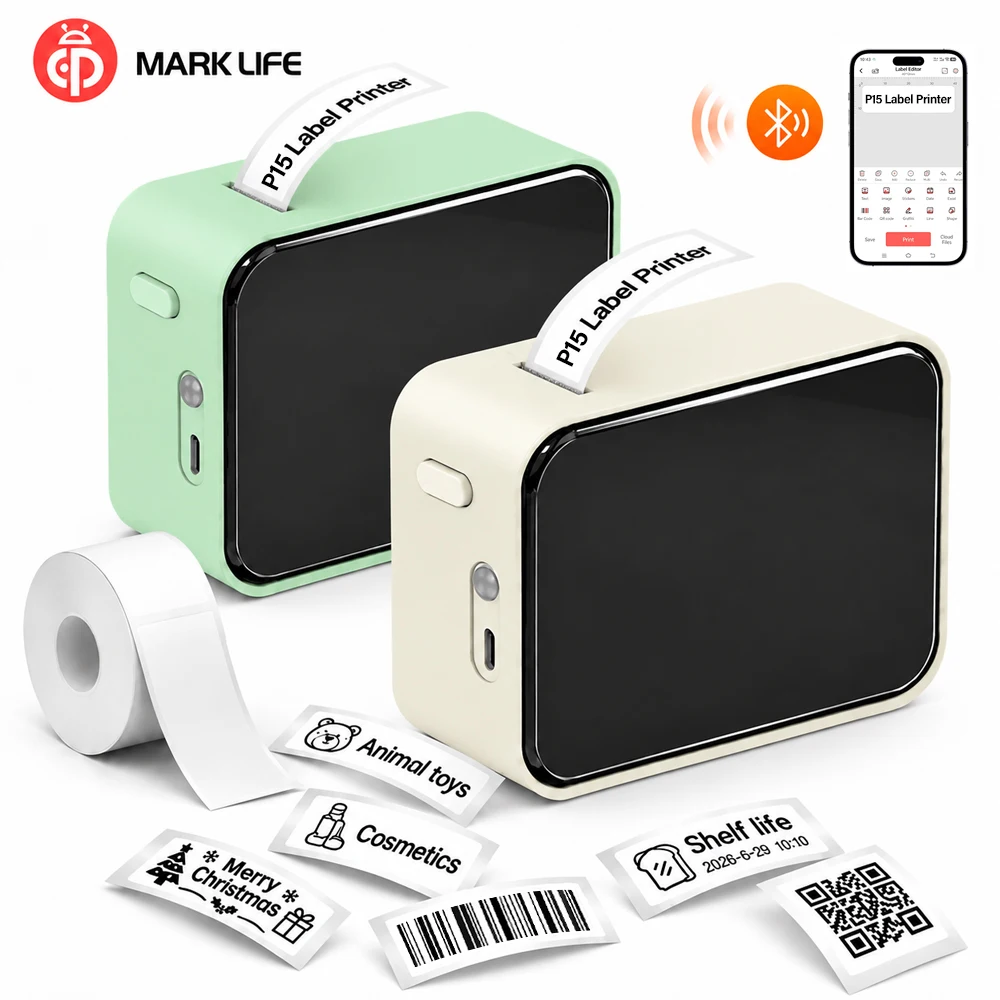
The seller describes the Marklife P15 as a compact thermal printer for self-adhesive labels and name tags. It may suit simple names for boxes and folders; “Mini” in the listing title does not establish the usable label area.
NIIMBOT B1: if you also want to use a computer
The B1 listing mentions Bluetooth and support for smartphones and PCs. Consider it if you want to prepare labels on a computer, subject to confirming support for your operating system. The seller’s “2 Inch” wording does not establish the exact printable width, so do not assume it can produce more detailed labels without further information.
Niimbot D110: for labelling in different parts of the home
The seller presents the D110 as a handheld, pocket-sized thermal printer with wireless printing for home and office use. It may be worth considering if you would rather prepare labels near boxes in different rooms. The listing does not establish its actual dimensions or weight; “pocket-sized” remains the seller’s description.
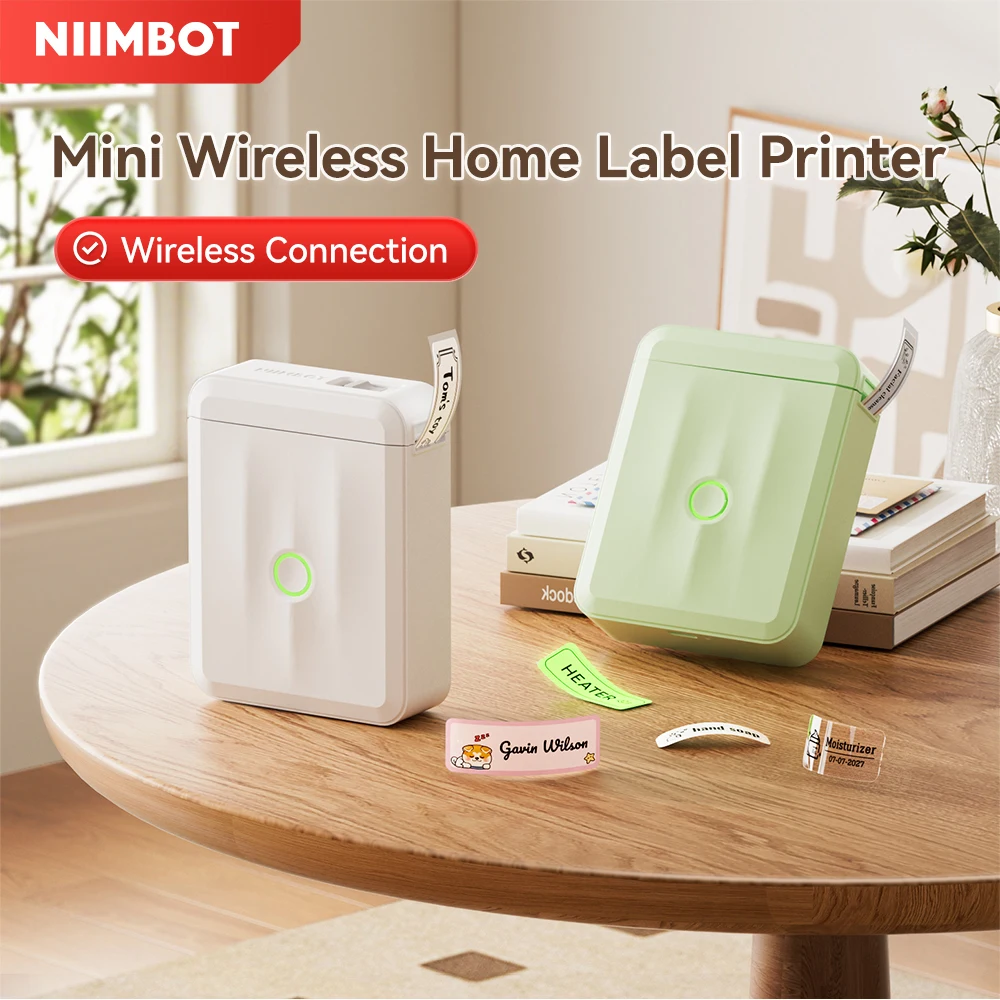
NiiMbot B21: if you plan to label items with codes
The B21 listing specifically claims Bluetooth and barcode label printing. This is worth investigating for a home catalogue of boxes where each entry has a code: check in advance whether the app creates the type of barcode you need. If readable names are enough, this claimed feature alone is no reason to prefer the B21 over another model.

This is the AliExpress catalogue price for the selected market when checked. Confirm stock, variant, delivery, taxes and the final total before paying.