How to connect iPhone to MacBook: various synchronization methods
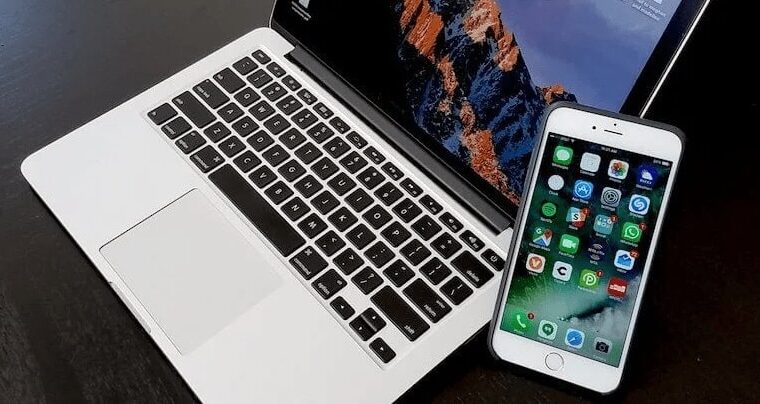
In the modern world, where digital devices have become an integral part of our daily lives, it is important to know how to effectively connect them. One of the most common combinations is iPhone and MacBook. In this article, we will explore different ways to connect iPhone to MacBook and evaluate the advantages and disadvantages of each.
Here are 3 ways to connect iPhone to MacBook:
Wireless Wi-Fi connection
Wireless Wi-Fi connection provides a convenient way to connect iPhone and MacBook without the need for physical cables.
Steps:
- Ensure both devices are connected to the same Wi-Fi network.
- Activate Wi-Fi on both devices.
- On MacBook, open “System Preferences” > “Sharing” > “File Sharing”.
- Select “Wi-Fi Sharing” and specify folders or files you want to share.
- On iPhone, open the “Files” app and select “Browse” > “File Sharing”. You will now see accessible folders from MacBook.
Advantages and disadvantages:
Advantages:
- Convenient wireless usage.
- Real-time file sharing capability.
- No additional equipment required.
Disadvantages:
- Limited data transfer speed compared to USB.
- Dependence on stable Wi-Fi connection.
Connecting via iCloud
iCloud is a cloud service from Apple that allows data synchronization between various devices, including iPhone and MacBook.
Steps:
- Ensure iCloud is enabled on both devices.
- Set up identical iCloud accounts on iPhone and MacBook.
- Select the data types (contacts, calendars, photos, etc.) you want to synchronize via iCloud.
Advantages and disadvantages:
Advantages:
- Automatic data synchronization between devices.
- Convenience and accessibility – data is available from anywhere with an internet connection.
- Ability to back up data.
Disadvantages:
- Limited free storage space in iCloud.
- Dependence on internet connection.
- Limited options for synchronizing certain data types.
Device synchronization via USB
USB synchronization is a classic method of connecting iPhone and MacBook using a physical cable.
Steps:
- Connect iPhone to MacBook using a Lightning – USB cable.
- If necessary, unlock iPhone and allow MacBook access to the device.
- On MacBook, open the Finder app, where you will see the connected iPhone device.
- Select the data types you want to synchronize (music, photos, apps, etc.).
Advantages and disadvantages:
Advantages:
- High data transfer speed.
- Ability to back up and restore data.
- Independence from internet connection.
Disadvantages:
- Need for a physical cable for connection.
- Possible inconvenience when moving devices during synchronization.
The choice of how to connect iPhone to MacBook depends on your personal preferences and the situations in which you plan to use synchronization. Wireless methods are convenient for everyday use, while USB connection may be preferred when fast transfer of large amounts of data is required. iCloud can be beneficial if automatic synchronization and data accessibility across devices are important.