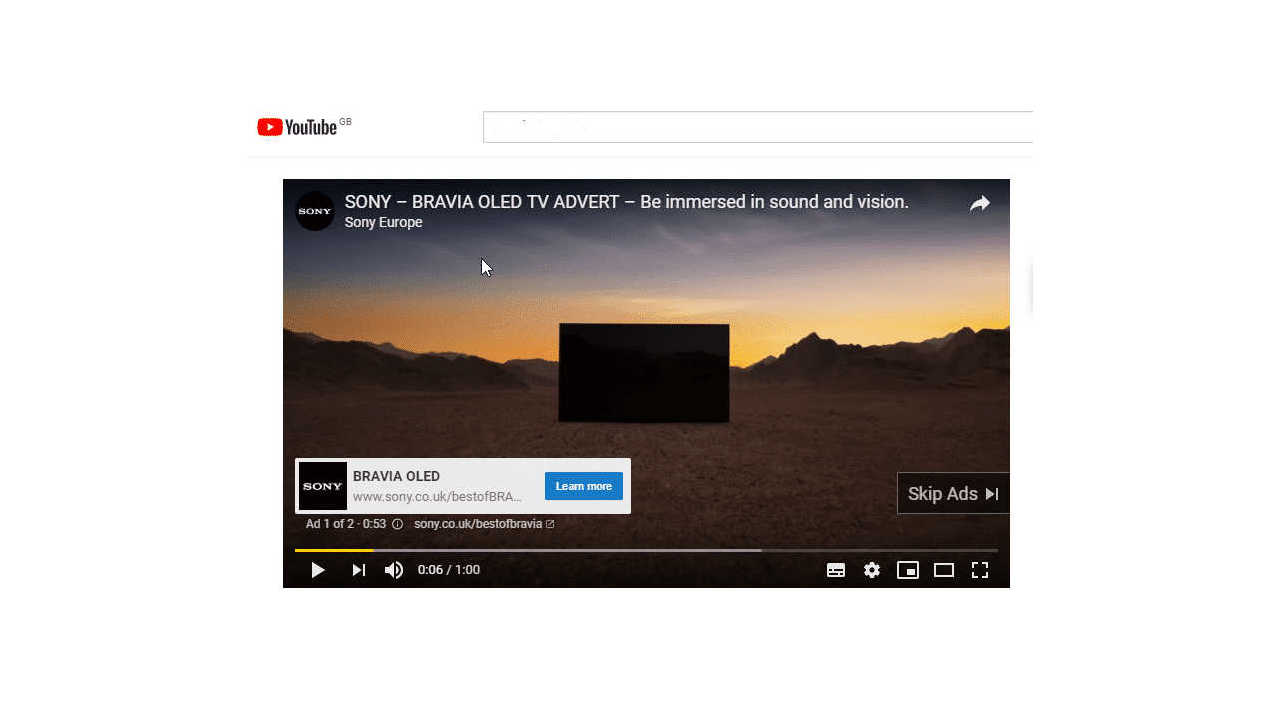

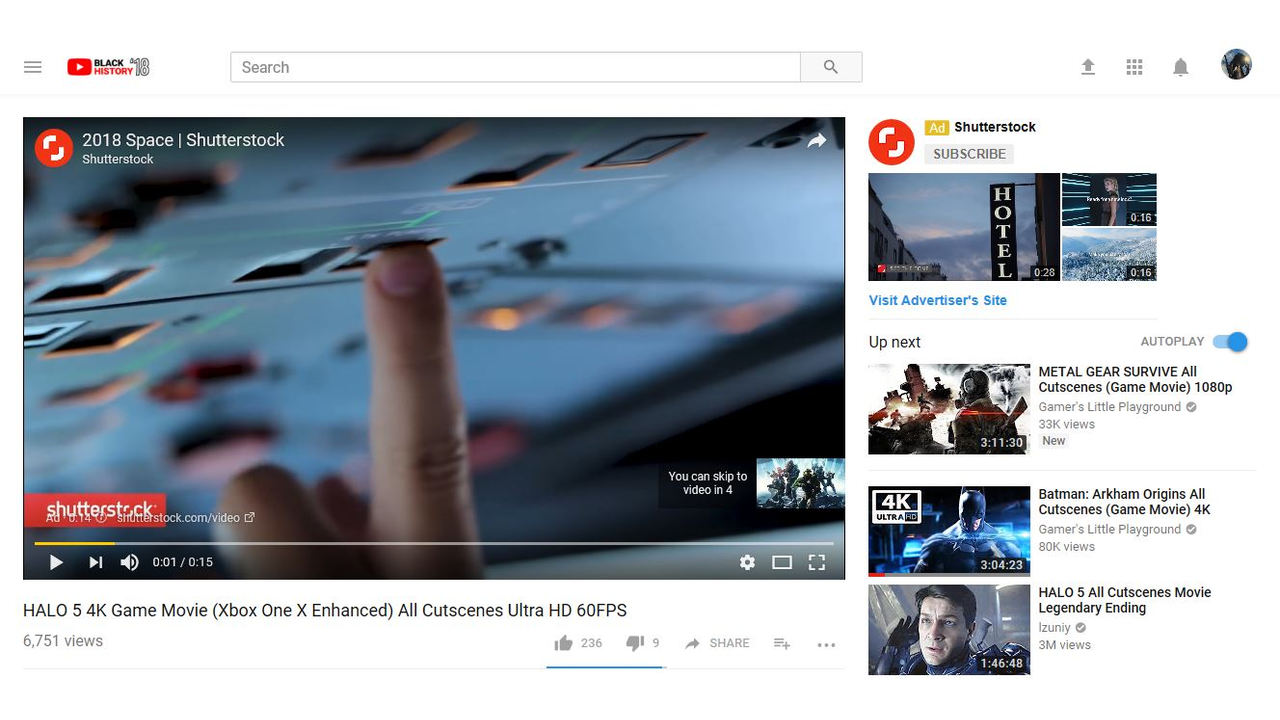
Advertising on YouTube has become quite annoying for all users. Even 2 seconds, after which it can be skipped, is enough to infuriate someone immersed in watching a movie or show online. The YouTube service offers to pay money and switch to the Premium version. An excellent idea, but the fee is not one-time and requires ongoing funding of the service. Naturally, everyone is interested in how to watch YouTube without ads and for free. And there is a way.
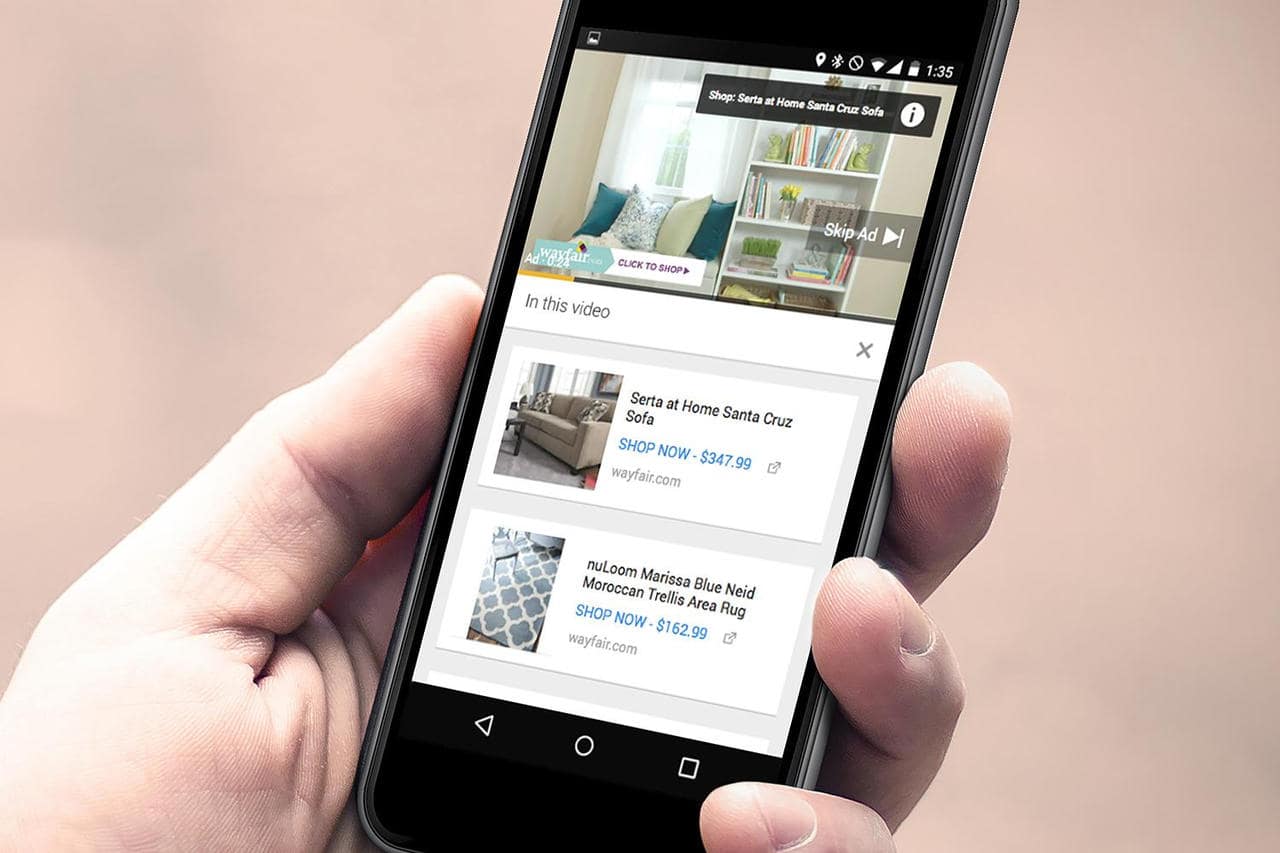
Let’s note right away that this is a loophole in the YouTube system itself, which could be fixed soon. But for now, why not take advantage of the bug.
How to Watch YouTube Without Ads
In the browser window, in the address bar, you need to modify the link – add a dot after youtube.com. To make it clear, here is an example:
- With ads: https://www.youtube.com/watch?v=Z_ARbb8Vak0
- Without ads: https://www.youtube.com./watch?v=Z_ARbb8Vak0
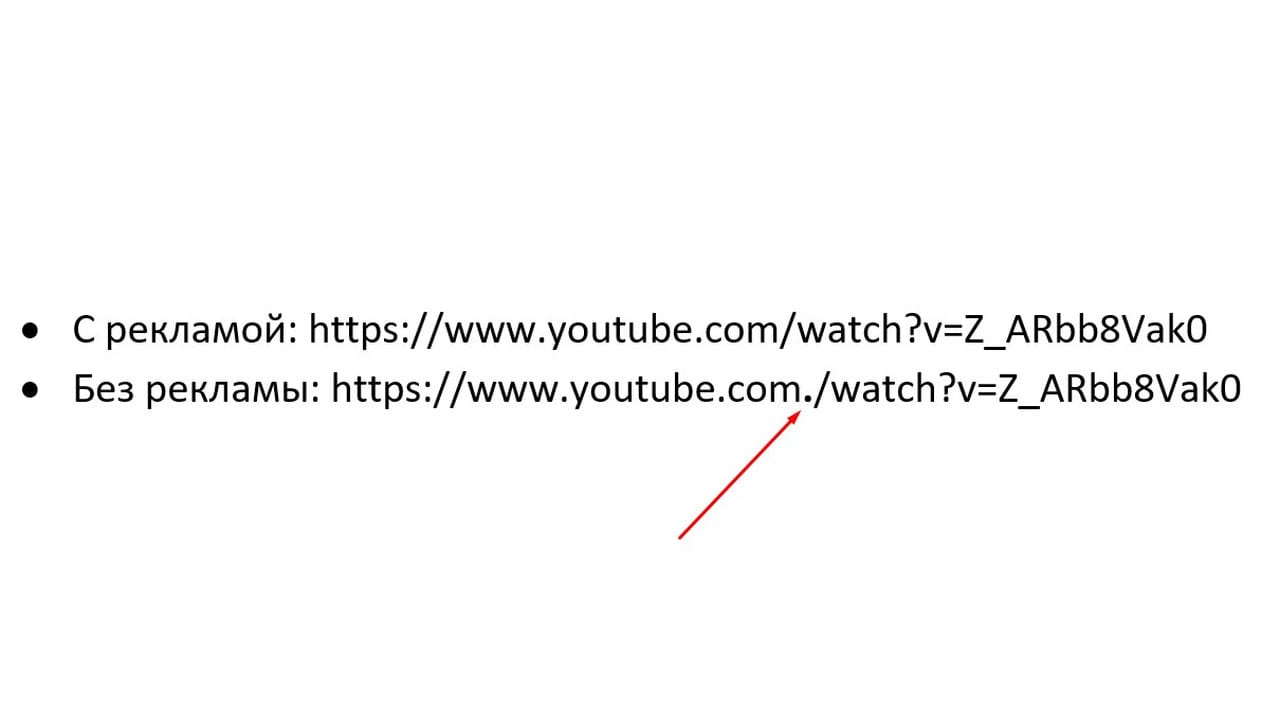
This simple operation takes a couple of seconds but yields excellent results. And there’s no need to install a bunch of useless programs that disable YouTube ads but love to sell something themselves and tinker with user documents. The only downside is that you need to constantly put this dot on different videos when switching. You can also use our recommendations for setting DNS in the network module settings – more details here: How to watch YouTube without ads on TV. But this is not always convenient for regular users.
Currently, this trick works only on PCs, laptops, tablets, and smartphones. And on the full version – in a web browser, not an app. But it’s better than nothing. Hopefully, the service owners won’t close this loophole. Paying for disabling the forced ads is just nonsense.