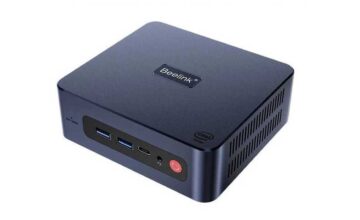
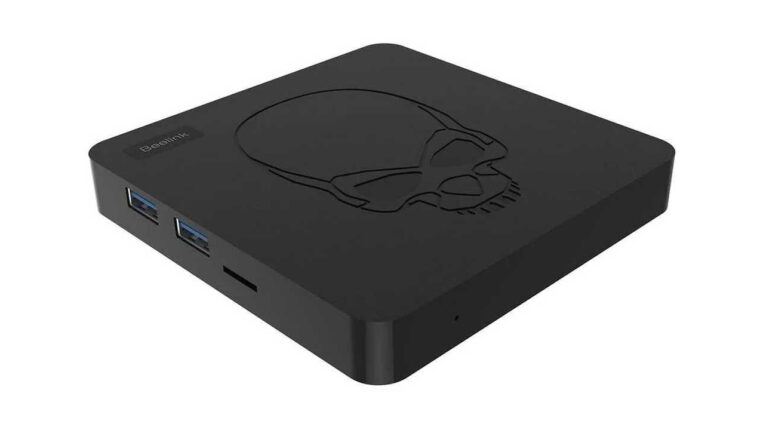
After an unsuccessful firmware update of the TV-Box or installing a “corrupted” update, the device immediately turns into a “brick.” That is, it shows no signs of life. Although the “skull” with green LEDs is lit, no signal is transmitted via HDMI to the TV. This is a common problem, especially for enthusiasts of custom firmware from the resource 4PDA. And it can be fixed in 10 minutes.
Beelink GT-King Won’t Turn On – 1st Recovery Method
On the Internet and on YouTube channels, there are dozens of videos about flashing the device by connecting it to a PC with a USB cable:
- Download the original firmware from the manufacturer’s website.
- Download and run the USB Burning Tools program.
- Obtain a USB “male”-“male” cable.

The procedure is very simple. But finding such a cable in computer stores is difficult. It is not in demand. You need to look for it online, order, and wait. All this takes time. There is a simpler and faster way.
How to restore Beelink GT-King – 2nd, quick method
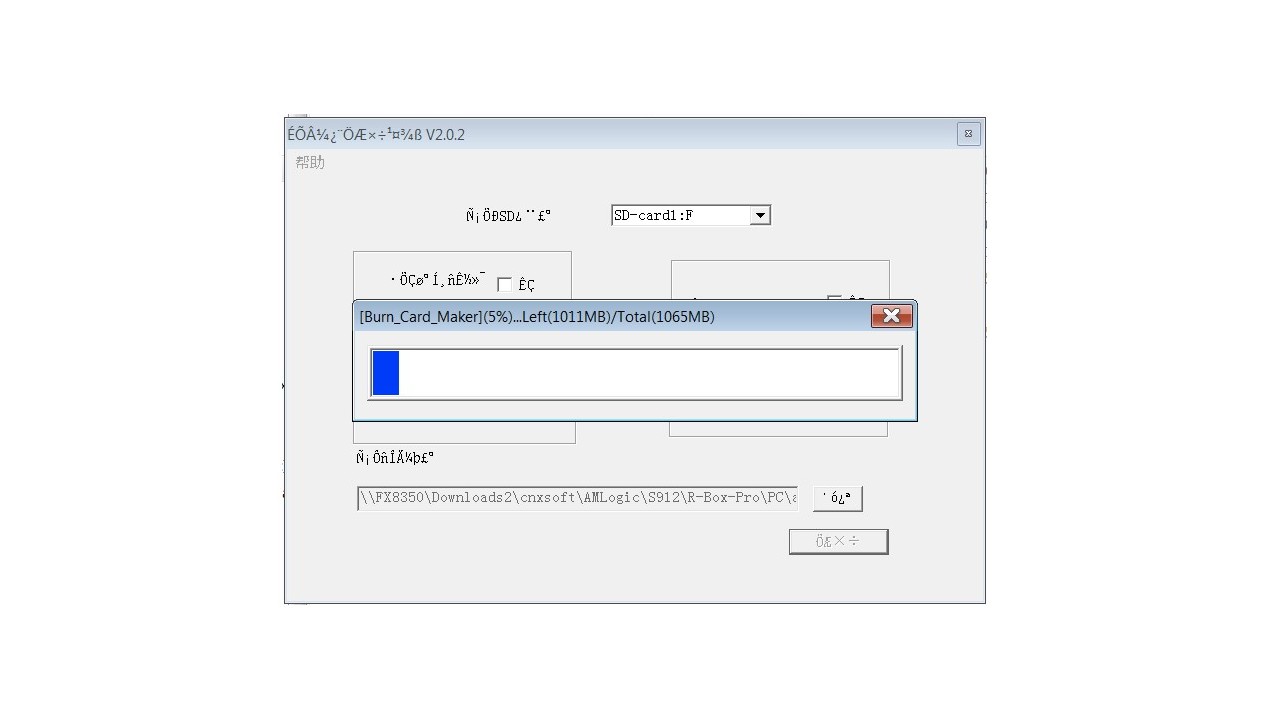
You will need any microSD (TF) memory card of 2 GB or more. Download the Windows application Burn Card Maker from the Internet – you can download it here. Firmware for Beelink – here. And then everything is simple:

- Launch the Burn Card Maker program.
- In the top left menu (in Chinese), select the 2nd item from the top (there are 3).
- Check the box next to English Version, restart the program.
- Insert the memory card into the card reader and connect it to the PC.
- In the “To Partition and Format” menu, check the box (Yes).
- In the “Choose Disk” menu, select the memory card.
- Click the “Open” button at the bottom and specify the path to the firmware file (with the IMG extension).
- Click the “Make” button.
- After formatting (FAT32) is complete, confirm the operation – the firmware image will be written to the memory card.

After completing the operations on the computer, insert the flash drive into the Beelink GT-King device. Make sure it fits into the slot, as the Chinese made a deep groove. Probably so that the memory card does not protrude. You can push it in with a paperclip or fingernail. Don’t worry, it won’t get stuck – there is a release mechanism.
Next, perform the following operations with the device:
- Hold the device in your hands (the memory card is already inserted), disconnect other cables.
- Connect the HDMI cable, turn on the TV – it shows “no signal”.
- Near the serial number label, there is a hole for the Reset button. Insert a paperclip or toothpick, hold it down.
- Connect the power cable to the device.
- When the splash screen appears (gray skull on a gray background), wait 2 seconds and release Reset.
- The firmware process begins. Wait for it to finish and you will get a working interface.
It is important here to catch the moment when the splash screen appears after connecting power and releasing Reset. It may not work the first time. You can hold the button longer or release early. Everyone is different – 2-3-4 seconds. You need to catch the moment. It will definitely work on the 5th-10th attempt. Or even on the first try.

Firmware via USB – Alternative Method
Similarly to the memory card method, it is possible to restore the device using a USB flash drive. It must be inserted into a USB 2.0 port. Strangely, not all flash drives are recognized by the TV-Box. But any memory cards are compatible. To save time, it’s better to use a MicroSD card immediately.
Another point – the firmware method with a memory card is not only suitable for Beelink GT-King. Almost any gadget of the Chinese brand Beelink can be restored using these methods. Also, this method can be used to flash devices based on AMLogic from other manufacturers. The main thing is to find the Reset button. Some manufacturers hide it, either in the AV port or under the USB port.