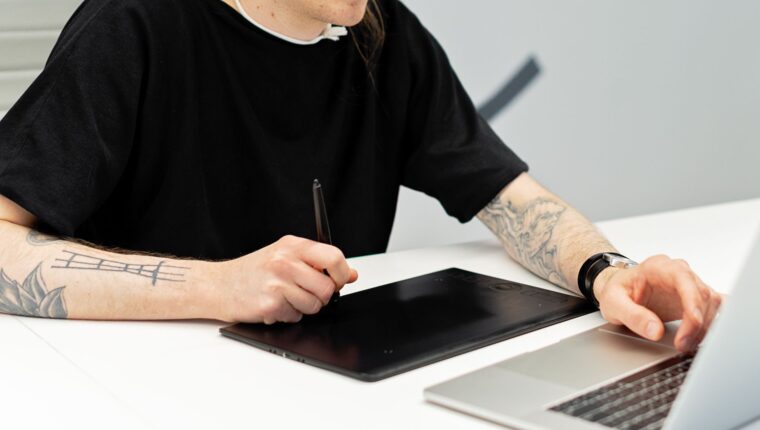
Choosing a first graphics tablet without a screen, it is easy to focus on pressure levels and miss a more basic question: how comfortable will it be to draw while looking at your monitor? Your hand moves on one surface while the image appears on another. Start by deciding what active area suits your movements, checking the driver for your operating system, and understanding how the tablet maps to the screen. Then compare shortcut keys and the pen specifications the seller lists.
This article contains affiliate links. TeraNews may earn a commission on purchases made through them, at no additional markup to you.
This guide looks at six graphics tablets without built-in displays. The product titles provide model names and some claims, but the supplied information does not include a complete, verified specification set for each selected listing. Treat any listed dimensions, pressure levels and compatibility as seller claims. Wacom and Krita documentation explain the general principles, while the XPPen Deco 640 manual gives a specific example of Android limitations.
First decide whether drawing on a separate screen suits you
On a tablet without a display, the active surface reads pen input while the image stays on a connected screen. Wacom’s explanation of active area and mapping describes a mode in which the pen’s position corresponds to a particular point on the monitor. Keep this in mind before comparing sizes: you are choosing a surface for controlling an image, not an extra screen.
This format may suit you if you are comfortable looking at a monitor while moving your hand across a desk. If you need to see the drawing directly beneath the pen tip, look for a pen display or another device with a screen. If you need to work independently, first establish which device will run the application: the tablet discussed here is an input device, not a computer replacement.
Before choosing a model, write down your intended setup in one line, such as drawing in Krita on a Windows laptop or working with an external monitor. That is more useful than a general requirement like “for drawing”: it identifies the operating system, application and screen whose compatibility you need to check.
Active area matters more than the tablet’s outer dimensions
Wacom defines the active area as the surface that detects pen input. It is not the whole tablet body. A diagonal or size figure in a product title therefore does not tell you how much room your hand will have. You need two measurements for comparison: the width and height of the active area. For desk space, check the body’s dimensions separately.
Size affects the relationship between hand movement and cursor movement. Wacom’s mapping guide explains that reducing the active area in use lets a smaller pen movement move the cursor farther. That creates a practical trade-off. A smaller area may suit someone who wants to control the whole screen with short movements. If you prefer broader hand movements, compare options with a larger active area whose dimensions have been confirmed.
A larger surface does not automatically make drawing more comfortable. What matters is how much of it you actually use and which screen it maps to. Before ordering, mark the proposed active area on your desk and check whether your keyboard and other everyday items still fit nearby. Then check the space needed for the body separately: its dimensions are not a substitute for those of the input area.
The product titles below give different levels of detail. One lists two surface dimensions; another gives only a size in inches. Those figures are not directly comparable. If a seller does not say what a measurement refers to, ask for a diagram showing the active area and the body dimensions before drawing conclusions about size.
One monitor, two monitors and preserving proportions
If your computer has multiple screens, check the selected model’s driver for mapping options in advance. In Wacom’s documented setup, the default area covers all monitors, and settings let you select one screen or part of one. This matters because the same tablet surface mapped to one monitor behaves differently from a surface spread across several. Check the documentation for the specific HUION, XPPen or Gaomon model before assuming it offers similar settings.
The second point is aspect ratio. According to Wacom’s guide to preserving proportions, a mismatch between the shape of the active area and the screen can distort the drawing. Preserving proportions prevents that distortion, but may leave part of the tablet surface inactive.
When choosing, consider the aspect ratio as well as the area. Check whether the driver can preserve your monitor’s proportions and how much of the surface would remain usable after the setting is applied. At a two-screen desk, decide which display will show the canvas, then check whether input can be assigned to it. Do not assume another brand’s driver works like Wacom’s without checking.
Pressure: check the application first, then the level count
Krita’s graphics tablet documentation explains that pressure data can, for example, vary brush size according to how firmly you press the pen. But cursor movement alone does not confirm that pressure data is being received. It depends on the operating system driver and the input protocol; for Windows, Krita’s documentation covers WinTab and Windows Ink.
A claim of thousands of pressure levels does not replace checking the combination of model, operating system and application. The supplied listings include claims of 8,192 and 16,384 levels, but those figures do not establish which model will work better in your software. A number alone cannot tell you how the driver is configured or confirm a drawing advantage.
Before buying, find a driver for the exact model and your operating system version, then check the application’s requirements. Once connected, test cursor movement and pressure response separately. The second check needs a brush configured to respond to pressure; otherwise, a line of uniform width cannot by itself show where the limitation lies.
If pressure does not work, compare the input method selected in the application with the driver and application documentation. For Krita, its guide, including the sections on Windows protocols, is a useful reference. That is a more specific troubleshooting step than choosing a different tablet solely because its title lists more levels.
Android needs a separate check
A mention of Android does not mean that every tablet from a brand works in the same way. The XPPen Deco 640 manual describes connecting to Android with a USB-C cable and an OTG adapter, and using an application that supports pressure. For this model, the manufacturer specifies Android 10.0 or later.
The same manual gives a limitation that could affect your choice: when the Deco 640 is connected to Android, it requires portrait orientation with auto-rotate turned off. Normal use in landscape orientation is not stated. If your setup depends on a landscape canvas on a phone or tablet, account for this before ordering.
These requirements apply specifically to the Deco 640. The supplied material does not establish the Android version, connection method or orientation for the other models below. The word “Android” in a product title does not confirm that the tablet will work with your device and application.
What to check across the six models
The options below differ mainly in how specifically their sellers describe size, controls and system support. The source information does not verify complete specifications for the exact listings. It also does not confirm what is included in each package, which pen model is supplied, whether it needs power, how the tablet connects to a computer, or whether the necessary adapters are included. Resolve these questions before ordering rather than assuming the product name answers them.
- Match the model number and generation to the documentation and driver. The version should match for the Deco Mini7 V2 and Deco01V3.
- Ask for the active area’s width and height, plus the body’s dimensions separately. Clarify what the inch measurement in the title refers to.
- Check your operating system version, application and pressure support. A general mention of Windows, Mac or Android does not establish compatibility for the full setup.
- Check mapping to one monitor and proportion preservation, especially if you use more than one screen.
- Confirm whether the selected package includes a compatible pen, which cable it needs and whether you must source any adapters separately.
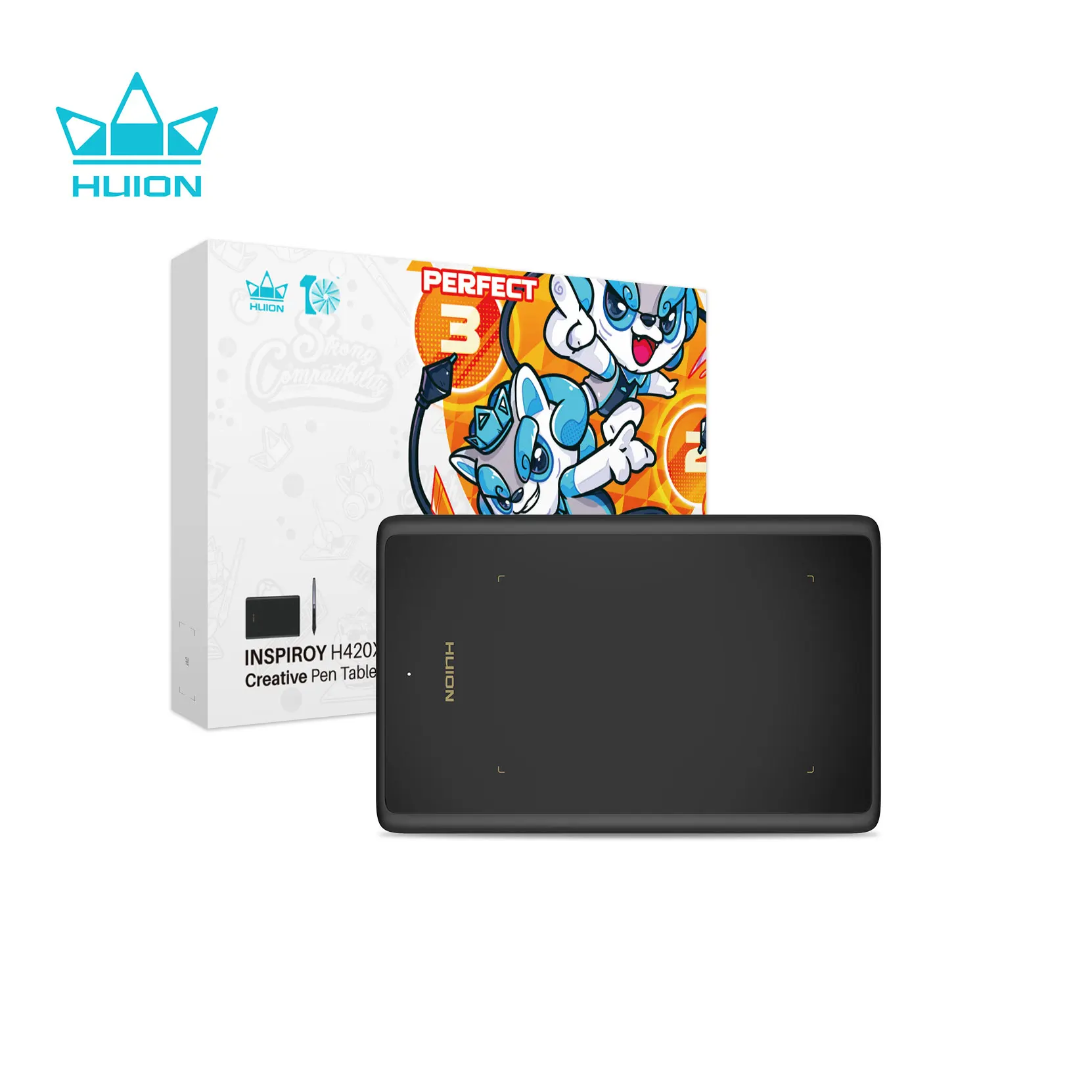
HUION H420X: a starting point for short movements
The product title claims a 4.17 × 2.6 inch area and compatibility with Windows, Mac, Linux and Android. If those measurements refer to the active surface in the selected listing, this model may be worth considering for controlling the cursor with short movements. If you prefer broader strokes, first compare that area with your usual hand movement. The Linux claim makes checking the driver for your specific system particularly important.
XPPen Deco Mini7 V2: an option with listed shortcut keys
The seller lists a 7 × 4.3 inch size and eight keys. Consider this model if you want to put some application commands on the tablet; before buying, check whether the driver lets you assign the actions you need. The title also claims 16K pressure levels and support for several systems, but those details do not confirm how a particular brush or application will work. Use the full name Deco Mini7 V2 when looking for documentation.
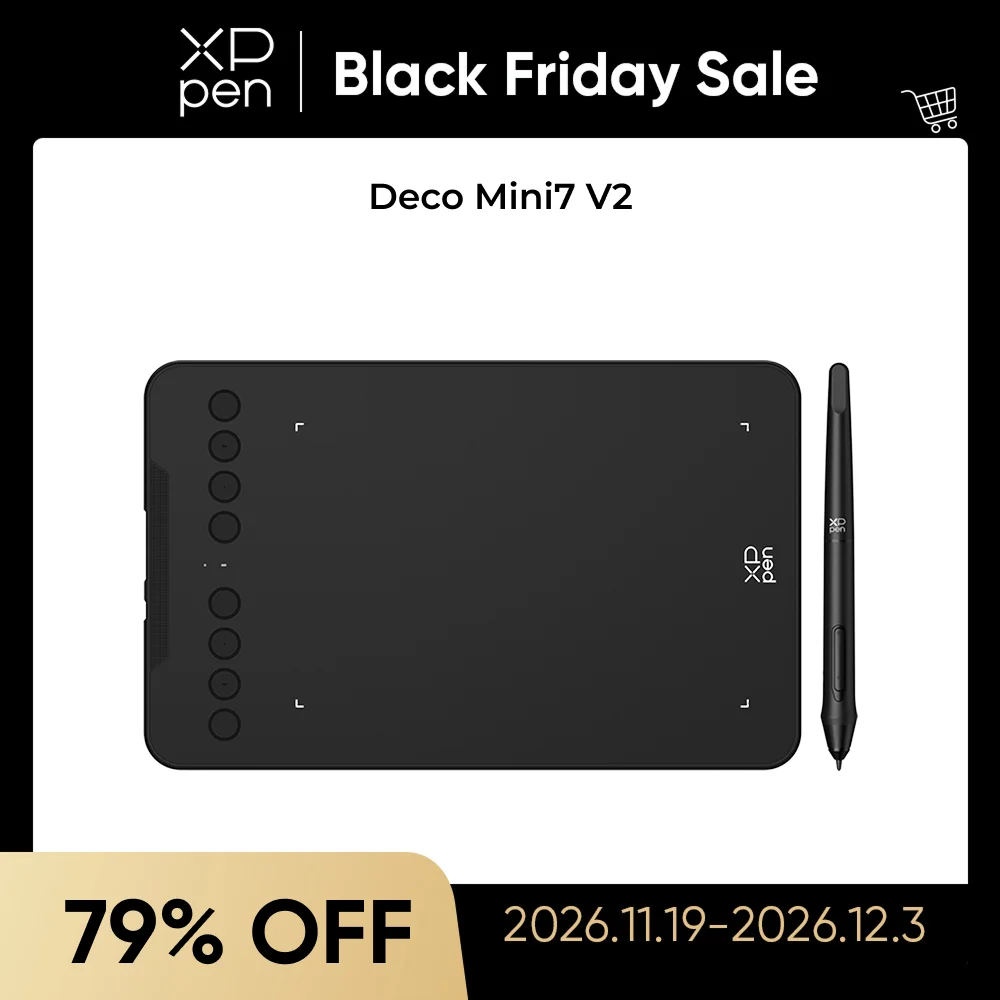
Price checked 23.11.2026: 24.39 GBP
Sold: 662+; Buyer rating: 97.1%
View on AliExpress
XPPen Deco01V3: a candidate to compare for a larger working surface
The Deco01V3 listing title gives a 10 inch size and claims 16,384 pressure levels and tilt up to 60 degrees. It may be worth comparing if you want to weigh a smaller surface against an option for broader hand movements. But “10 inches” alone does not establish the active area’s width and height. Ask for both measurements before making that comparison; the figure is not a usable area measurement by itself.
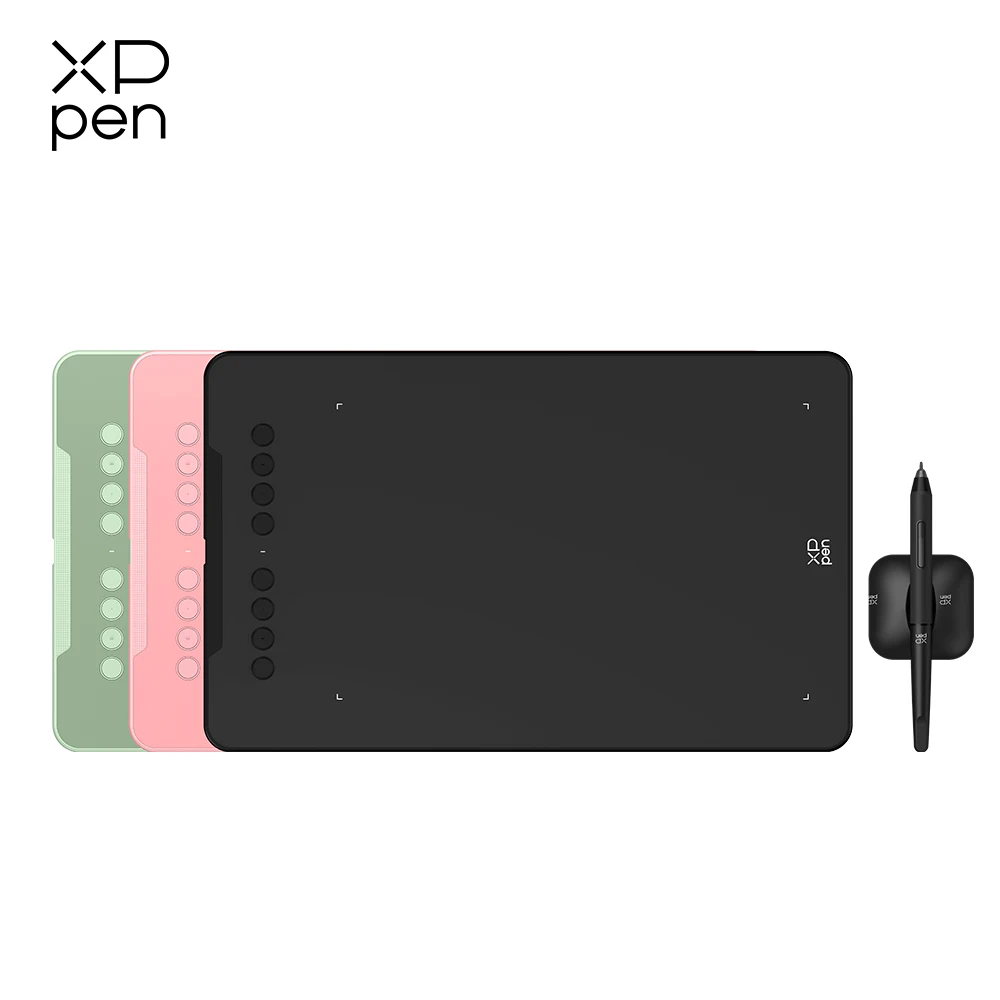
XPPen Deco 640: a model with a documented Android limitation
The Deco 640 may be worth considering if Android is part of your setup and portrait orientation works for you. Its manual specifies Android 10.0 or later, an OTG connection and an application that supports pressure. The seller also claims eight keys, 16,384 pressure levels and tilt up to 60 degrees. For computer use, check the driver for your operating system; for mobile use, follow the manufacturer’s full connection instructions.

HUION HS64: a listing to check against your system
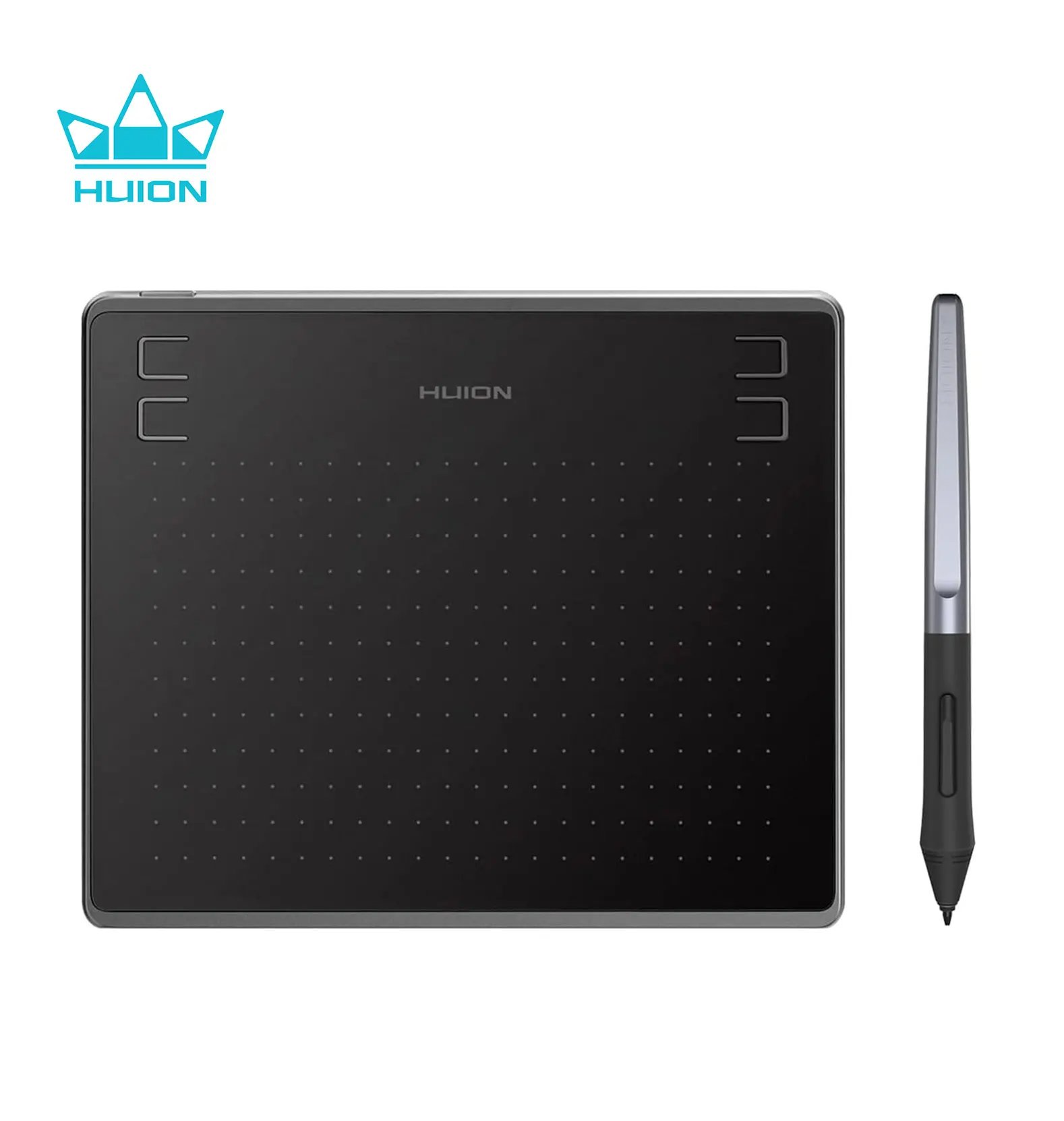
The seller claims a 6 inch size, 8,192 pressure levels and compatibility with Android, Windows and Mac. Consider this option for drawing on a laptop if the driver supports your exact operating system version. The 6 inch figure does not give the active area’s width and height, so it cannot be compared directly with surfaces described using two measurements. Start by checking those dimensions and support for your application.
Gaomon S620: another size to assess against your usual hand movement
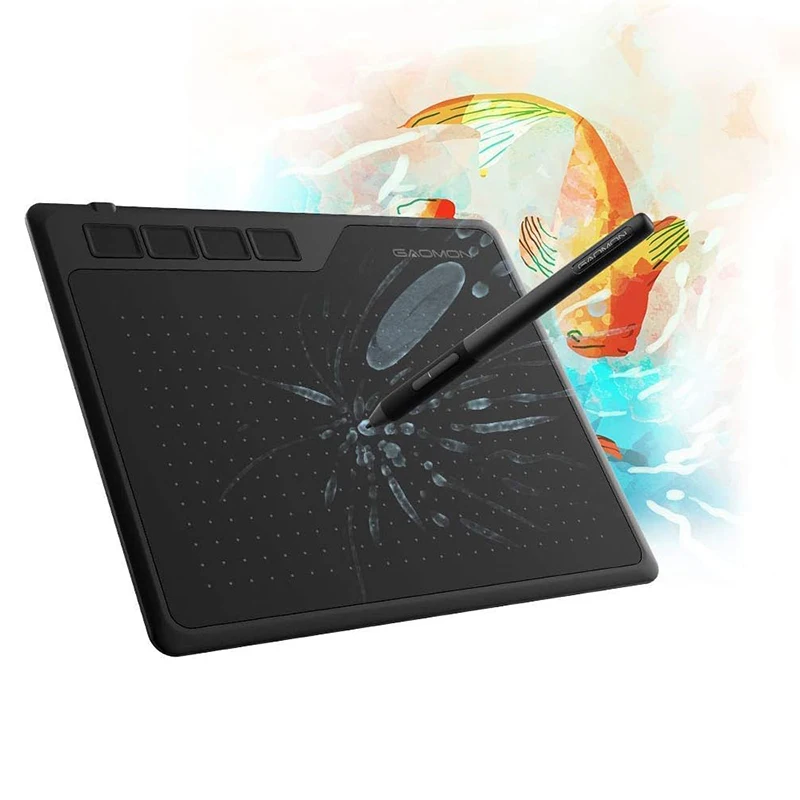
The product title lists dimensions of 6.5 × 4 inches and Android compatibility. If the seller confirms those are the active-area dimensions, you can compare them with the claimed 7 × 4.3 inches for the Deco Mini7 V2. This option may be useful to consider when choosing an area that suits your usual hand movement. Computer operating system support and mobile operation need separate verification; the supplied title does not explain them in detail.
How to decide without guesswork
First, choose two models whose confirmed active areas suit your hand movement and desk space. Then rule out any option for which you cannot confirm the driver, application support or package contents, including a compatible pen. If you plan to use Android, also check the operating system version, connection and orientation. The Deco 640 example shows why one word in a product title is not enough to establish compatibility.
One final useful step is to write down the exact setup you plan to use: tablet model and generation, operating system, application, main monitor and connection method. That makes it easier to ask the seller specific questions and compare the answers with the documentation. Until the key details are clear, more pressure levels or extra keys do not make the choice more certain.
This is the AliExpress catalogue price for the selected market when checked. Confirm stock, variant, delivery, taxes and the final total before paying.