
The YouTube app has really turned into an ordinary TV due to the ads. We understand that Google wants to make money. But doing so at the expense of viewer comfort is too much. Literally every 10 minutes, an ad appears, which cannot even be skipped immediately. Previously, viewers could find ad blockers when asked how to disable ads on YouTube on their TV. But now, all that no longer works, and you have to watch everything. The point of no return has been passed – the YouTube app can be discarded. There is a good, albeit radical, solution.
How to disable ads on YouTube on your TV
To clarify that everything is honest and transparent, let’s immediately determine the legality and effectiveness of the innovation. We have the Smart YouTube TV app, which is flooded with ads. And there is a new program, Smart Tube Next, which will solve our problem. The author of both apps is the same. That is, the developer, seeing how Google is cluttering his creation, decided on such a transformation.

The SmartTubeNext app is currently not available in the Google and Apple stores as it is in testing. However, the app can be downloaded from the developer’s website. To save you time, you can download it from our Google Drive here (or here). It’s amusing that we are using Google resources to solve the problem and prevent earning from ads. You are to blame – appetite needs to be controlled somehow.
How to install SmartTube Next
There are two options: the program is installed on the TV or on a set-top box. In both cases, Root is not required, as it is a regular Android app. We have a TV-BOX Beelink GT-King – no issues. The only thing is to allow installation from unknown sources in the system settings. When you run the installer, it will automatically direct you to the necessary menu.
On first launch, it is recommended to go directly to the “Subscriptions” menu. Here, the Smart Tube Next app will prompt you to activate your account by entering a code on the website. It’s simple – on any device where you use your YouTube account, go to this link (https://www.youtube.com/activate) and enter the code displayed on the TV screen in the “Subscriptions” menu. Any spaces are taken into account. And that’s it.
To make it easier, here is the step-by-step algorithm: How to disable ads on YouTube on your TV
- Download the SmartTubeNext program from the link 1 or 2
- Copy the file to a USB flash drive and insert it into the TV or TV box.
- Run the installation of the SmartTubeNext program. If permissions are denied, click “go to settings” and allow installation from unknown sources.
- Return to the SmartTube Next installation and complete the process.
- Launch SmartTube Next.
- On the left, find the “Subscriptions” menu and click on it. A code will appear.
- Open this link on a PC or smartphone: https://www.youtube.com/activate
- Enter the code displayed on the TV in the “Subscriptions” menu into the input field.
- Return to the TV screen and enjoy watching.
- If you have questions about picture resolution, there are fine-tuning options in the video settings (in the menu of the running video). Auto frame rate, resolution, sound quality, backlight, etc.
SmartTube Next in action: review
No ads. Gorgeous interface, excellent manageability. The program sets the average display resolution, but you need to manually specify that you have 4K. Compared to annoying ads, this is a minor detail. Actually, the app has auto frame rate in settings, and everything works perfectly. No questions. Now, when asked how to disable ads on YouTube on your TV, you only need to say three words: Smart Tube Next.
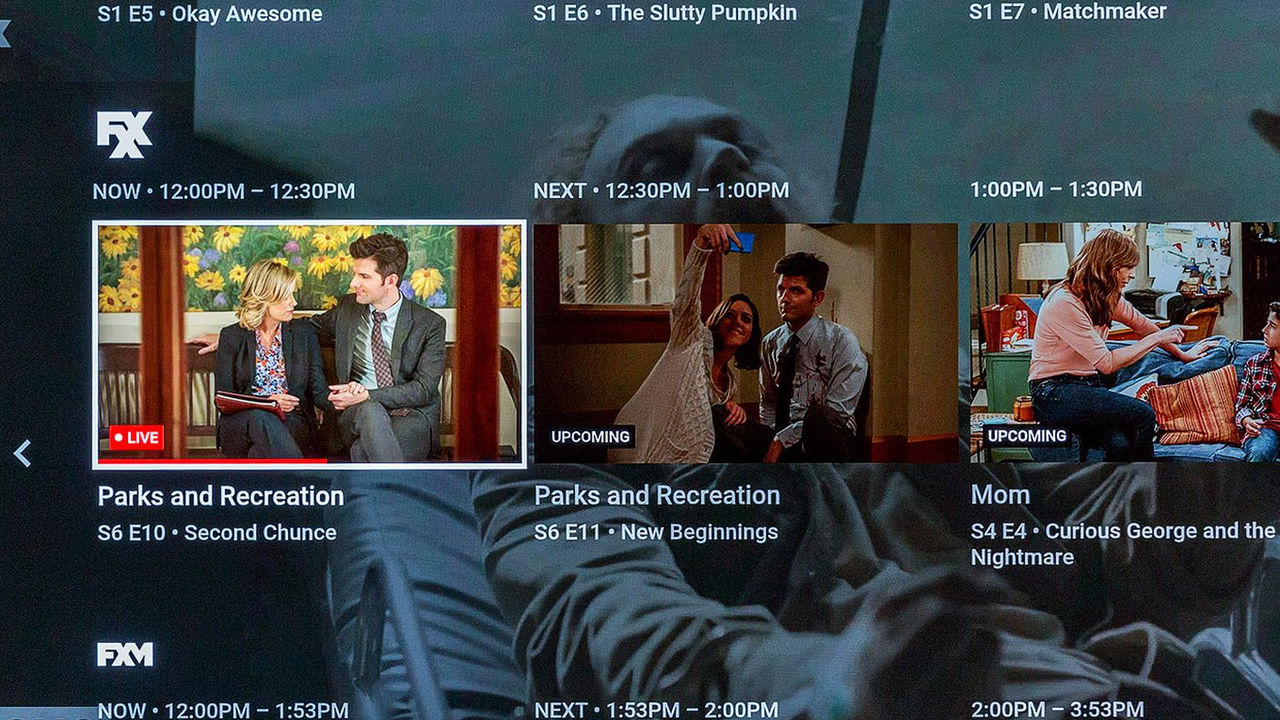
In general, use it, enjoy it, test it, and share the joy with others. We do not know how long this happiness will last. Surely, Google will interfere with this app with its tentacles. But let’s hope it happens not soon.



![[Exclusive] Noise Master Series: Review of flagship headphones](https://teranews.net/wp-content/uploads/2025/09/frame_19522-360x220.webp "[Exclusive] Noise Master Series: Review of flagship headphones")