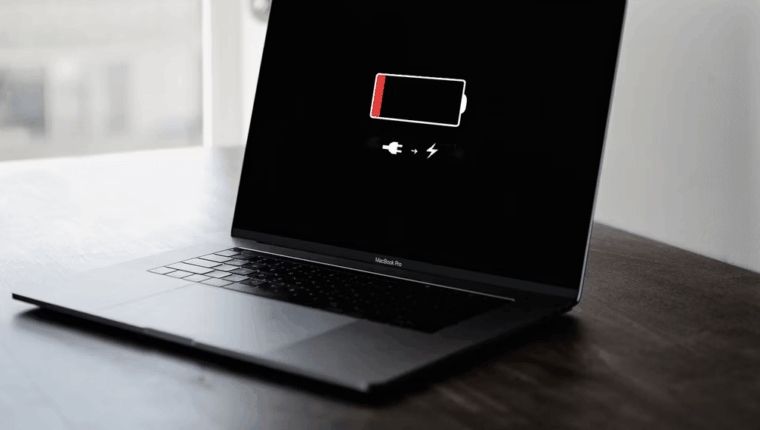
Every MacBook owner wants to use their device efficiently and comfortably. But sometimes you may encounter a situation where the laptop’s battery quickly loses its charge, leaving you without a working gadget at the most inconvenient moment. This can be frustrating, so we suggest learning how to identify and deal with “power-hungry” processes.

Quick check of apps consuming significant energy
The first way to check which apps are draining your MacBook’s battery is to look at the battery icon in the top right corner of the screen. Clicking on it will display the charge percentage and a list of apps that use a substantial amount of energy. These are the ones reducing your device’s runtime.
If you are not using these apps, it is better to close them to save battery. You can right-click on the app icon in the Dock and select “Quit.” If you are using a browser that consumes a lot of energy, we recommend closing all unnecessary tabs or switching to another browser, such as Safari — which is optimized for MacBook performance.
Get an overview using System Settings
If the battery data is insufficient and you need more information, you can use System Settings. This is where various MacBook parameters are adjusted: privacy, security, display, keyboard.
To open the menu, follow three simple steps:
- Click on the Apple icon in the top left corner of the screen;
- Select “System Settings”;
- Go to the “Battery” section in the sidebar.
Here you can view the battery level over the last 24 hours or 10 days in a graph. The green bar below the graph shows when you charged your MacBook. Gaps indicate periods when the device was not in use. You can see a list of apps that consumed more energy during the selected period. This will help identify which apps frequently drain your MacBook’s battery.
Check energy consumption with Activity Monitor
This is a built-in application in macOS that shows which programs and processes are running on the device and how they affect performance and resources. “Activity Monitor” is located in the “Other” folder in LaunchPad.
Here you will see different tabs, but you need the “Energy” section. You can sort the list by parameters such as “Energy Impact” and “Consumption over 12 hours.” The higher these values, the more energy the app or process consumes.
If you find that some apps or processes are consuming too much energy and you do not need them, it is advisable to terminate them. Select the app or process in the list and click the “x” icon in the top left corner of the Activity Monitor window. Then confirm your action by clicking “Quit.” But be cautious, as ending unknown processes may disrupt system operation.