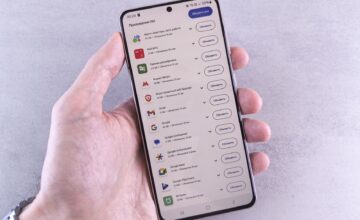

Despite the large battery capacities found in modern smartphones, the issue of battery life remains relevant. High platform performance and a large screen require additional power consumption. Many owners think this way and are mistaken. Battery life in Android smartphones is reduced by applications and system services.
How to Increase Smartphone Autonomy on Android
The main resource eater — the controller responsible for wireless communications. Specifically, Wi-Fi and Bluetooth service functions, which force the controller to constantly scan for nearby signals. The feature of these services is that they operate continuously, even if their icons are disabled in the system menu. To forcibly disable the controller, do the following:
- Go to “Settings”.
- Navigate to the “Location” menu.
- Select the “Wi-Fi and Bluetooth device scanning” option.
- Uncheck the boxes next to “Wi-Fi scanning” and “Bluetooth scanning”.
And don’t worry about the smartphone’s functionality over Wi-Fi networks or Bluetooth pairing. Everything will work as before. Only with the search disabled, the smartphone will stop informing the owner about wireless beacons, for example, in shopping malls. However, the battery life will increase by one and a half times. For many users, this means an additional half-day of operation on a single charge.

On older versions of Android, for some reason, the “Environment Sharing” service is always enabled by default. It provides access to data on the smartphone to surrounding users. Naturally, with authorization. It is located in the “Connected Devices” menu — “Environment Sharing”. Disabling it forcibly will save battery.
Cunning Google and Print Server Reduce Battery Autonomy
People rarely use the print service via Bluetooth or Wi-Fi. Or maybe never. But the server runs constantly. It must be disabled. In the “Connected Devices” menu, find the “Print” item and manually disable the service. If necessary, it can always be re-enabled.
Considering that Android OS owners are Google, it’s easy to guess that the company constantly monitors the operation of the mobile device. As stated in the menu — performs diagnostics and reads errors. In fact, Google simply monitors all user actions. To disable this sneaky service, do the following:
- Find the “Privacy” menu in the settings.
- Locate the “Usage & Diagnostics” item.
- Manually disable the service.

Saving battery life can also be achieved by disabling geolocation (GPS) in installed applications. You just need to logically determine which programs do not need to determine the user’s location. Games and office applications definitely don’t need navigation. But maps and weather apps will require GPS.