
Free applications for PC are great. Especially when it comes to popular messengers. On a personal computer or laptop, it’s easier to chat and work with documents. But the owners of these programs probably, out of greed, decided to make some money by creating inconveniences for users. First Skype, and now Viber has inserted ads into the main menu of the application. And so that they cannot be disabled. There is a simple solution on how to disable ads in Viber on your computer. No special knowledge of PC work is required.
How to disable ads in Viber on your computer
The feature of the ads is that they are served from special developer servers, the addresses of which are located in the program menu. Our task is to block access to these servers. You can, of course, configure Firewall on your PC or router, but this is a lengthy process. It’s easier to “tell” the operating system that these servers are on the local computer.
Open Windows Explorer or another convenient file manager (Far, Total Commander). Navigate to the Hosts file located at: C:WindowsSystem32driversetc
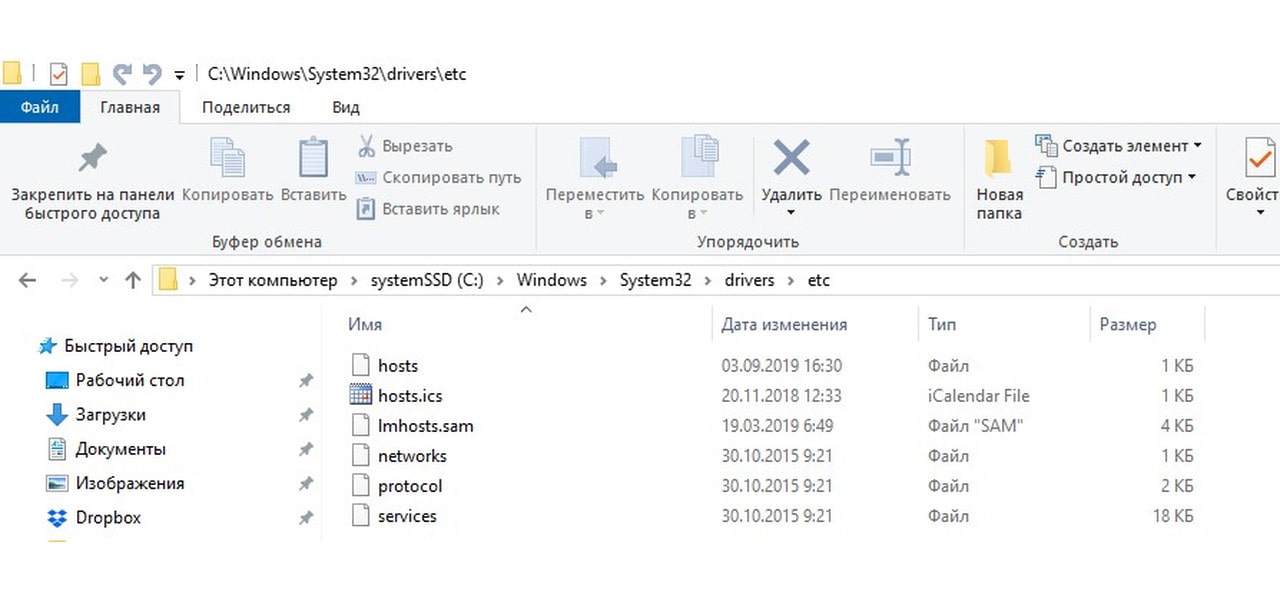
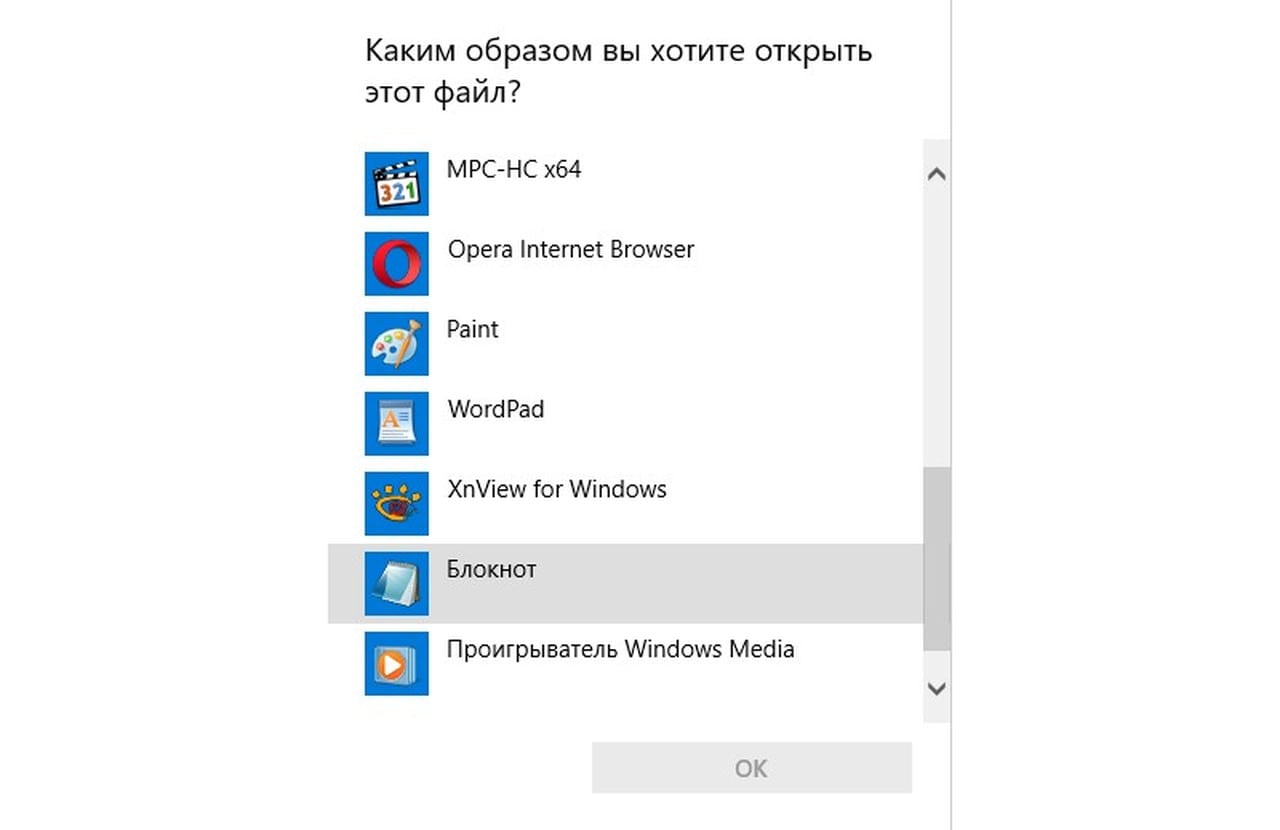
To open the hosts file, right-click on the icon and select “Open with” from the menu. From the available options, prefer system text editors such as Notepad or WordPad.
In different systems, the Hosts file contains different information. Usually, it is instructions for filling out. If the beginning of a line has a hash (#), it is informational text. If a new line already contains an IP address, it’s best not to touch it. Perhaps one of the installed programs made changes and needs this entry. In any case, the user should add the following entries on a new line:
127.0.0.1 ads.viber.com
127.0.0.1 ads.aws.viber.com
127.0.0.1 ads-d.viber.com
127.0.0.1 images.taboola.com
127.0.0.1 api.taboola.com
127.0.0.1 rmp.rakuten.com
127.0.0.1 s-clk.rmp.rakuten.com
127.0.0.1 s-bid.rmp.rakuten.com
Don’t worry, you won’t break anything. Each line is a command for the Windows network center — binding the remote server to the PC’s network address (127.0.0.1). By the way, this method can also block any internet resource on your PC. For example, to restrict children or if you are tired of pop-up ads in your browser — just add them here.
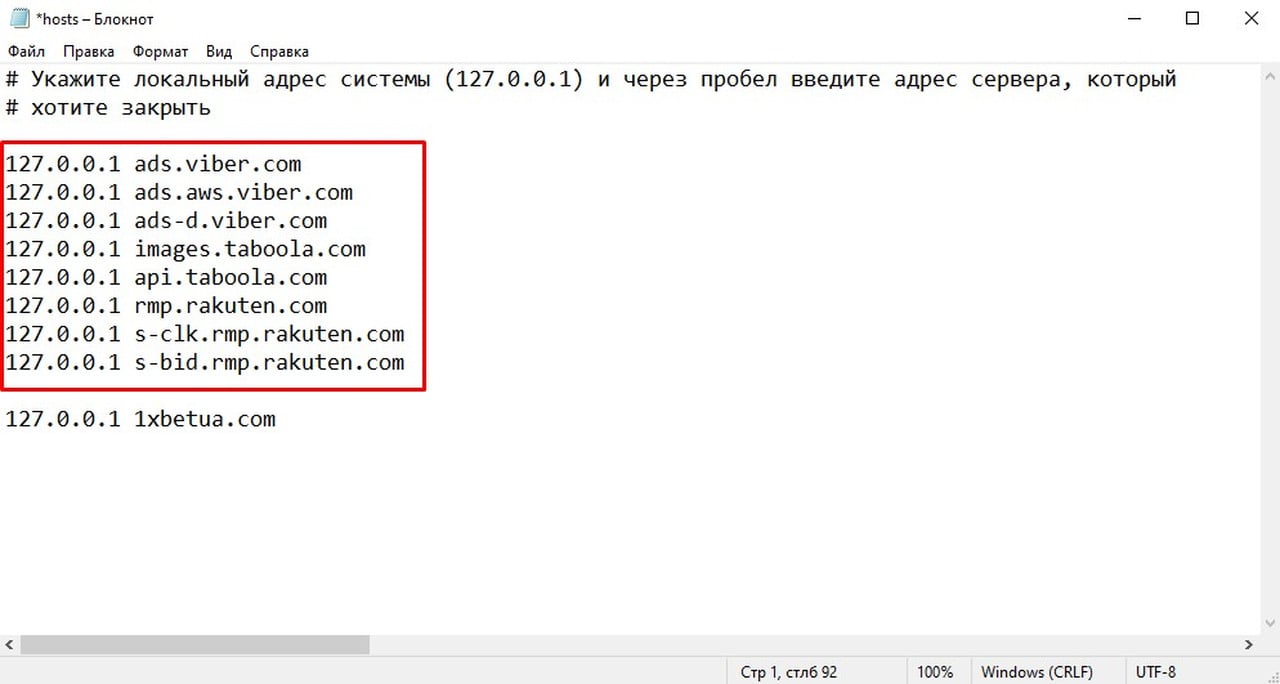
After entering all addresses, close the text editor, agreeing to save. Restart your PC and enjoy working with the free application without ads. Users looking for answers on how to disable ads in Viber on their computer gained additional knowledge — how to block unwanted sites in general.
One note regarding entries in the hosts file: the Windows operating system is periodically updated. At least once a year, Microsoft releases major patches that reset system file settings. In such cases, you will need to reapply the block for the programs.