The innovation in iPhone 14 Pro and 14 Pro Max is good. However, not all users like the wallpaper display on the Always-on Display. Because, due to unfamiliarity, it seems that the screen is not turned off. That is, the smartphone has not entered standby mode. Also, the AoD mode consumes the battery mercilessly. Apple developers offer 2 solutions to this problem.
How to Remove Wallpapers on Always-on Display in iPhone
You need to go to “Settings,” then to the “Display & Brightness” menu, and deactivate the “Always On” option. But then you get the screen of the iPhone 13, without the new feature. There are more flexible options to solve the problem.
The best way is to dim the AoD screen. Firstly, the smartphone will consume less power. Secondly, it’s still stylish, the feature will work and delight the user. And thirdly, the screen brightness will not cause inconvenience regarding standby mode and transition into it. To dim the screen, perform the following actions:
- Go to “Settings” and find the “Focus” menu. Relevant for iOS 16.
- Find and tap the “+” icon located in the top right corner of the screen.
- Select the “Custom” menu.
- Set a name for your custom focus (any you like).
- Tap the “Set Up Focus” button.
- In the “People” section, select users whose notifications you want to receive in AoD mode.
- In the “Apps” section, do the same for installed apps for notifications.
- Be sure to tap the “Done” button (top right corner), or nothing will be saved.
- In the “Options” section, activate the “Dim Lock Screen” toggle.
- Also, disable the “Hide Notification Stickers” toggle.
- By the way, you can set a schedule for the created preset and choose filters for focusing.
This method has only one clear drawback – the corresponding icon will always be shown in the status bar. Which many users find very annoying.
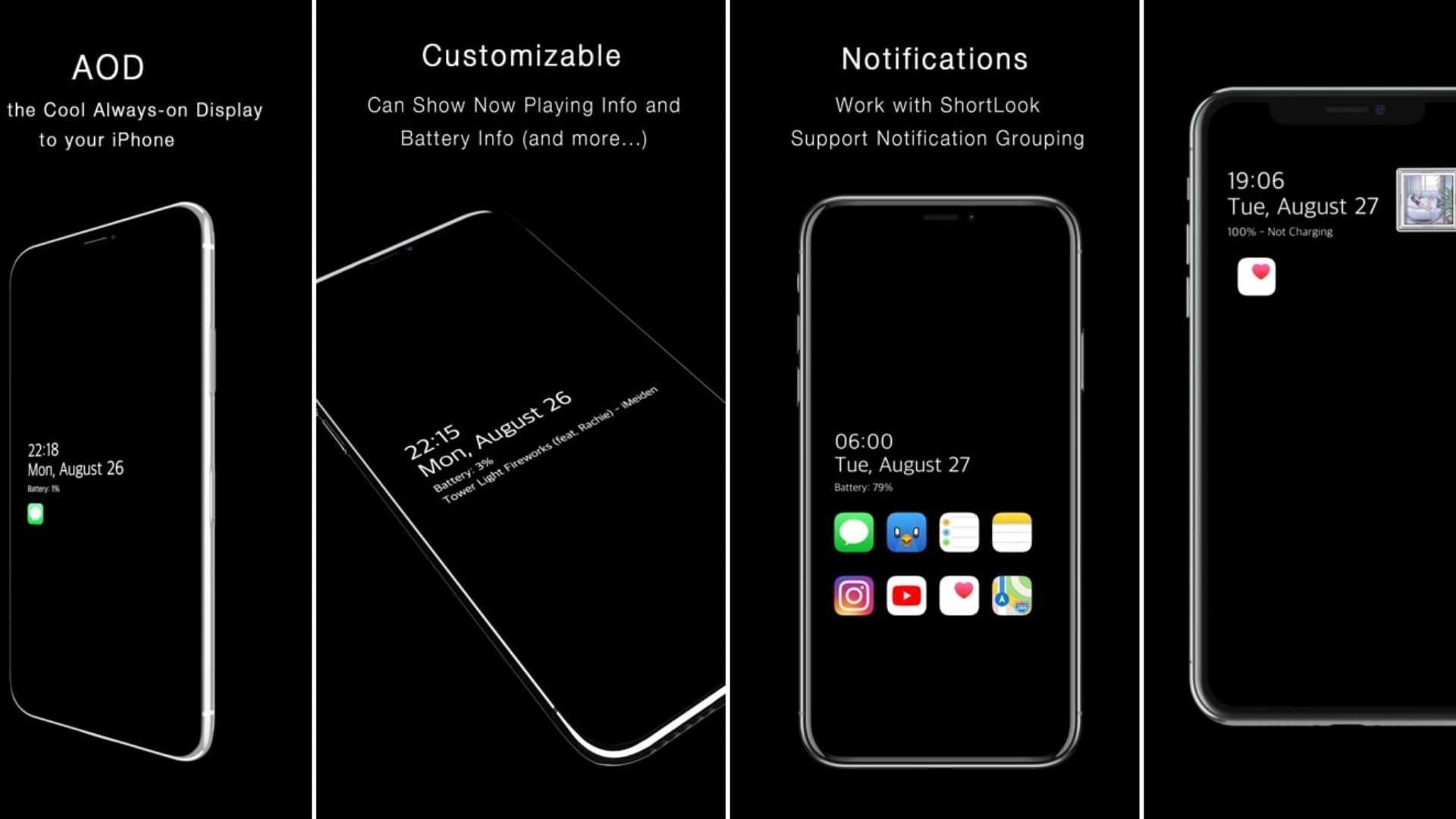
Disable Wallpapers on Always-on Display in iPhone – 2 Methods
This works only after updating iOS to version 16.2 beta 3. Here, Apple developers added a full management menu for AoD. Apparently, this is a test mode to see how relevant the problem is for users. The list of actions is significantly shorter:
- Go to “Settings”.
- “Display & Brightness” menu.
- “Always On” menu.
- And select the desired functions – enable or disable: AoD, notifications, and wallpaper demonstration.