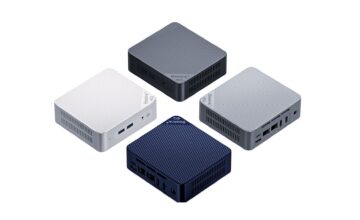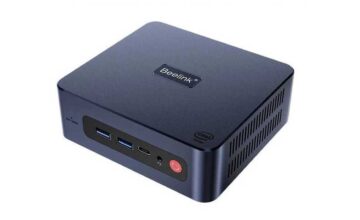

Basic information for watching IPTV (free) on computers and mobile devices:
- Windows 10;
- K-Lite Codec Pack (Mega);
- Microsoft Store (account);
- Kodi Repo;
- Elementum.
Technozon channel released a great video on installing and configuring IPTV. All links provided by the author under the video are placed at the end of the article. We offer a step-by-step installation and setup for users who dislike watching video tutorials.
IPTV and torrents: installing codecs
Download “K-Lite Codec Pack (Mega)” from the developer’s website. Just search for this name and follow the first link. Find the “Mega” section in the list and download the file from any mirror. Windows 10 may warn about running the executable (*.exe). To force installation, select “More details” and agree to the forced installation.
When installing K-Lite codecs, select Normal mode. In the windows that appear, you need to:
- In the Installation Preferences window: set MPC-HC as Preferred audio player;
- In the MPC-HC and DirectShow Settings window: select Lan Video DXVA2 and check the boxes for: H.264, HEVC, HEVC10, VP9;
- In the Audio Configuration window: choose the audio system format, and enable (Enabled) the audio decoder (if a TV or receiver is connected to the PC). Select the connection type and check all boxes in the Bitstreaming section.
- At the end of installation, if prompted to install DirectX files, check the box and continue the installation.
Microsoft account registration
By default, Microsoft Store is already installed in Windows 10. But some OS versions do not include the store by default. They disable it to save Windows resources. If the Store is missing in the search window (Start menu), it needs to be restored. You can do this by downloading the Microsoft.WindowsStore app from the Internet or restoring the store via the Windows 10 recovery menu.
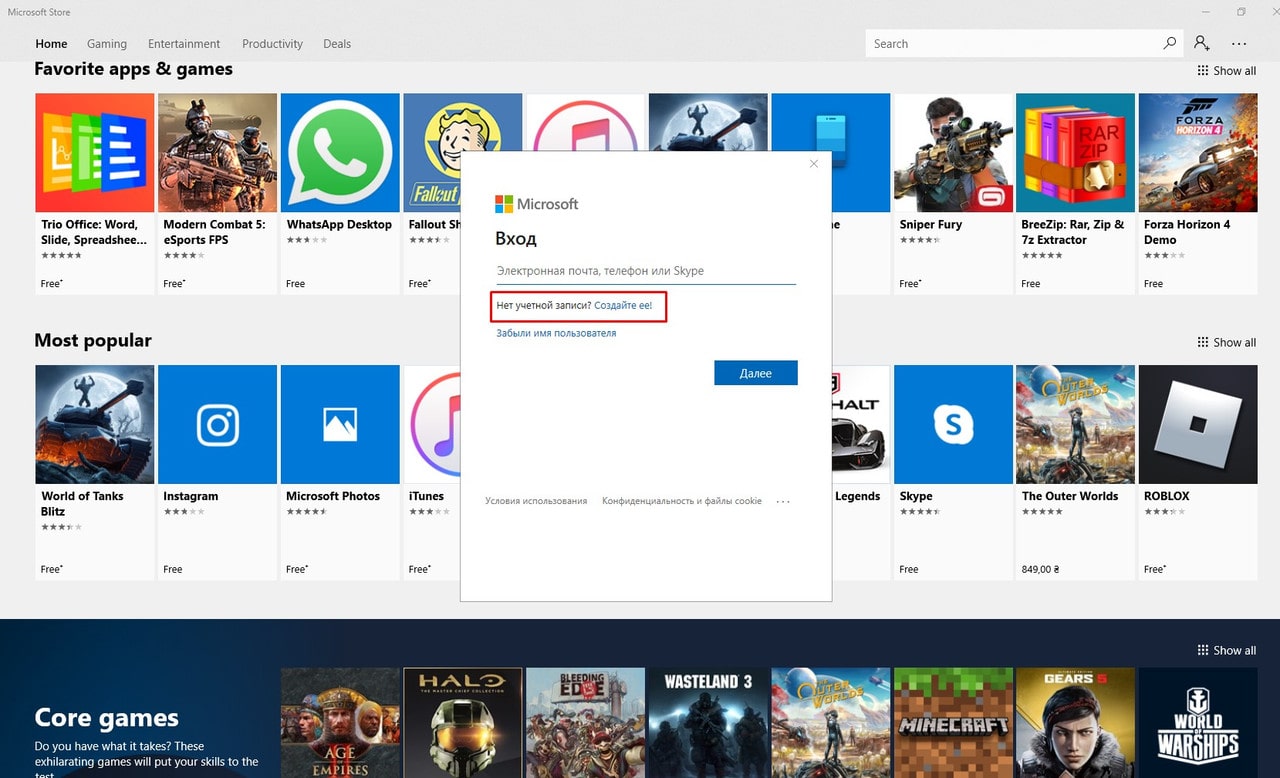
Registration is simple. You do not need to create a Microsoft account. Just enter your work email (Gmail is also fine) in the “Account” field, fill in “Name” and “Surname”, and set your desired password. Wait for the authorization code sent to your email. Enter it in the form field. And that’s it.
Installing software
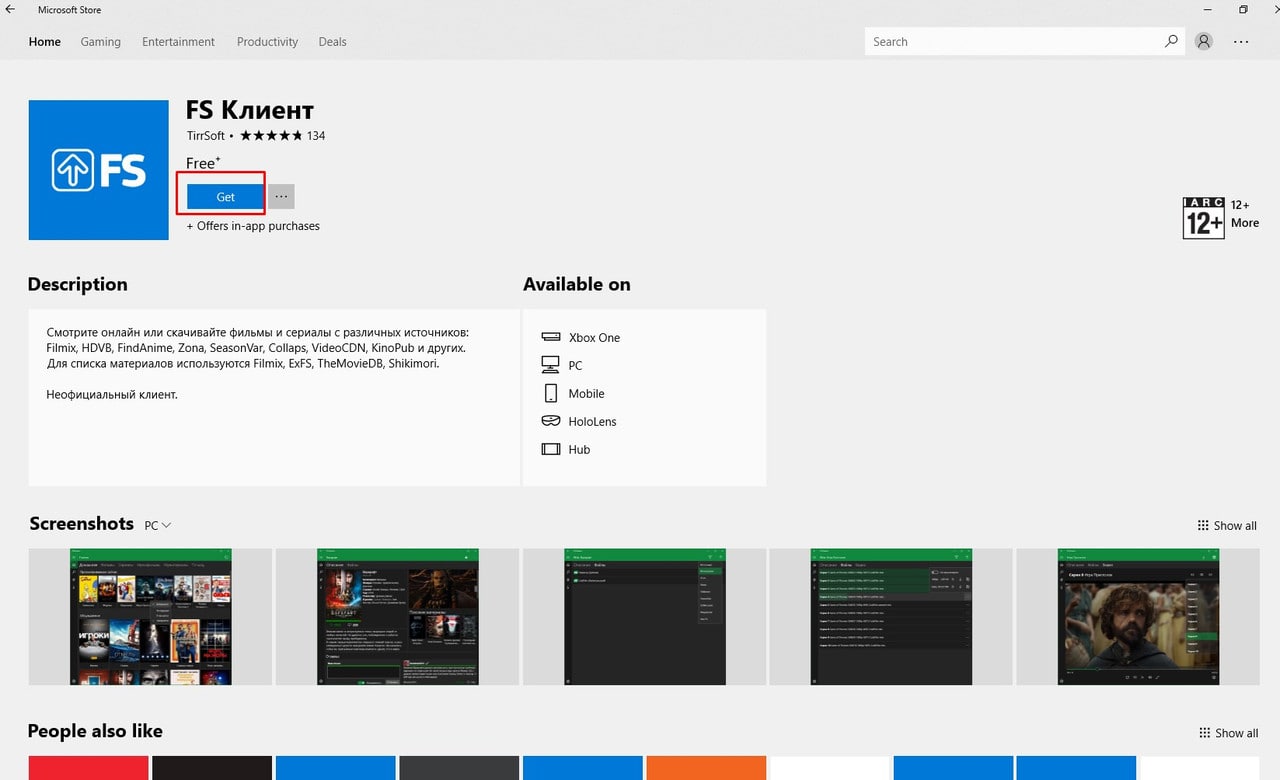
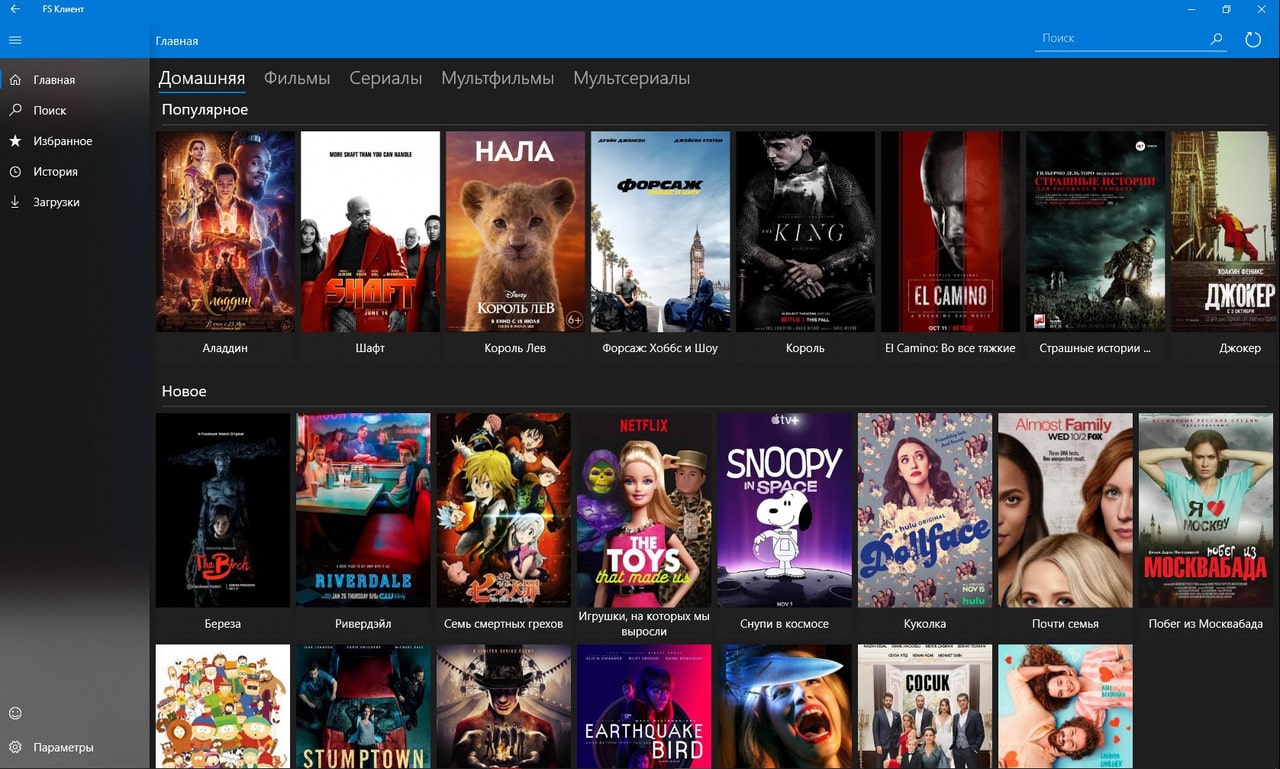
- FS Client. Installed via Microsoft Store. Search for the name and install on the computer.
- Netflix. Also found in Microsoft Store. To watch 4K movies from Netflix, you need to register on the platform and pay. If not planning to use it, you can skip installing this app.
- Kodi. Mandatory installation, also from the store.
- Nemiroff plugin – download link under the Technozon video resource. Just download to a separate folder.
- Elementum plugin – also linked below the video. Just download.

Additional registration on Internet resources:
- LostFilm.TV. Free registration is done in 3 steps. The obtained account must be entered into Kodi.
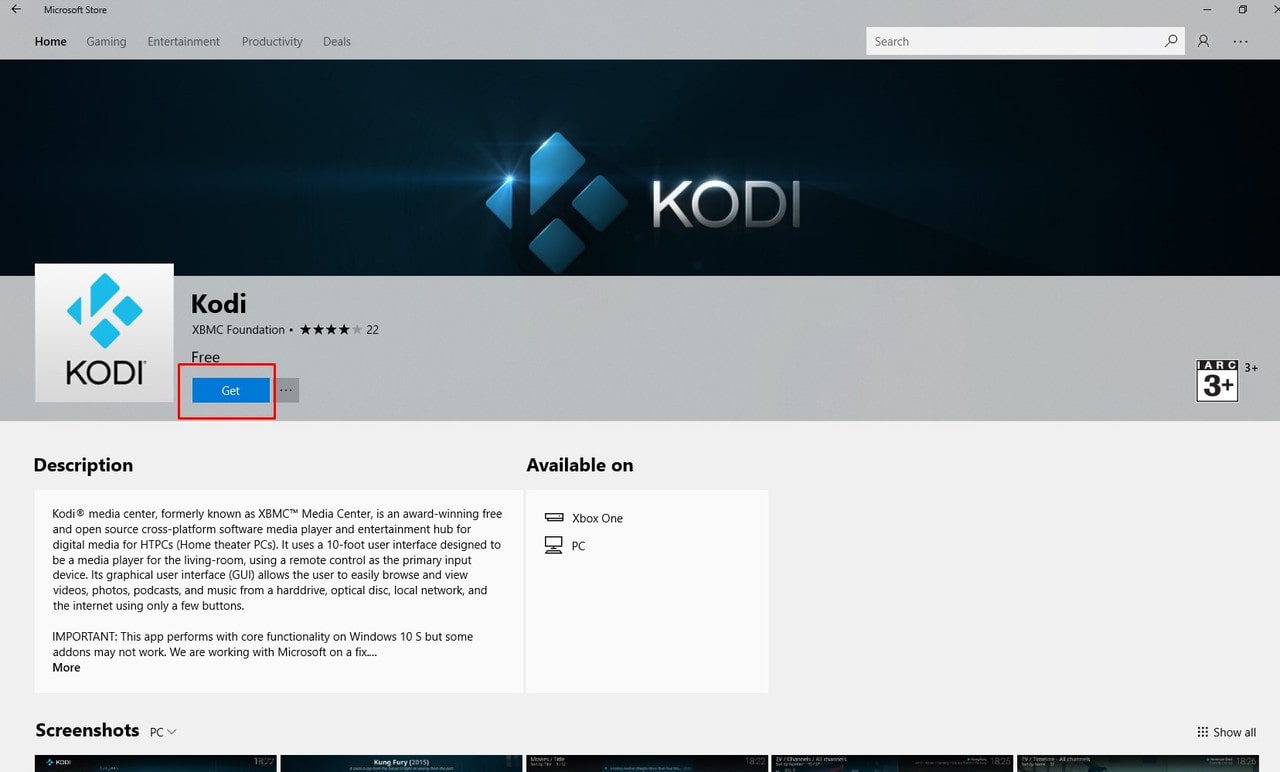
Additional Kodi settings
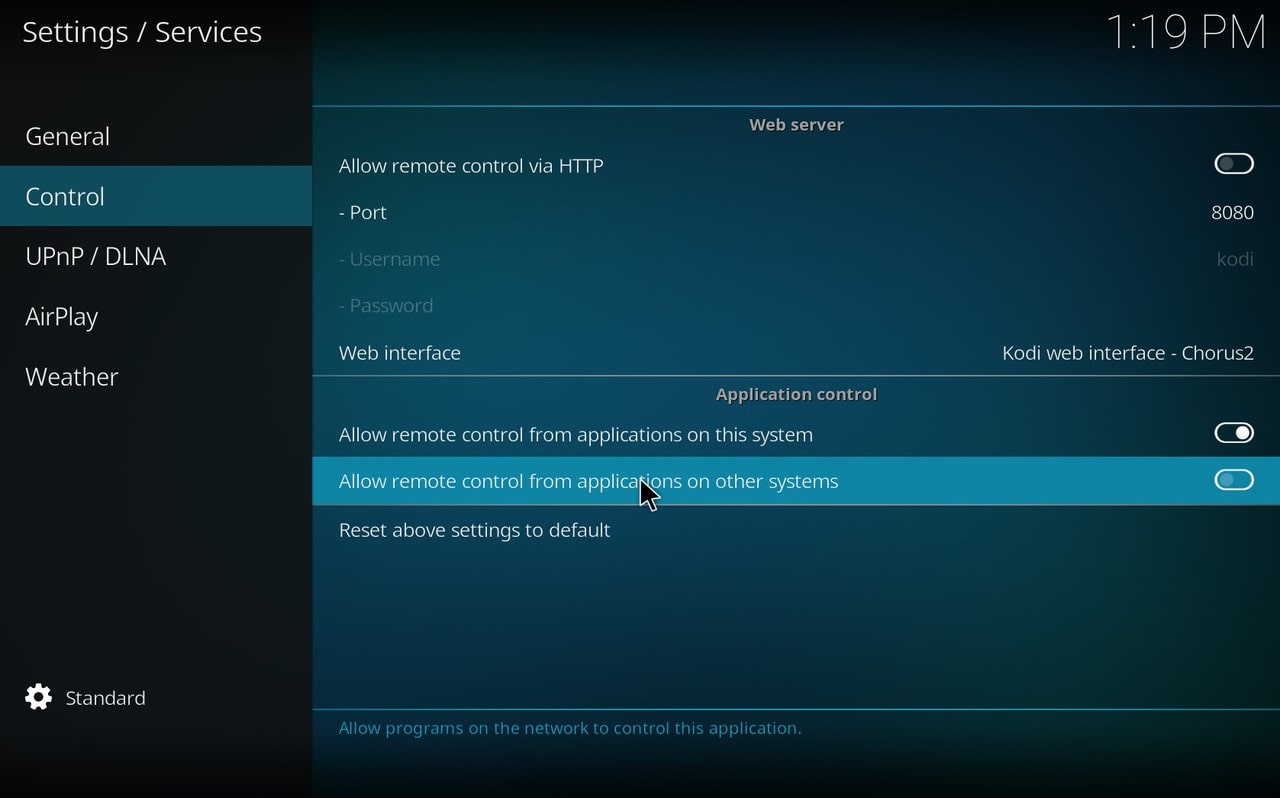
The installed application requires fine-tuning. Launch Kodi and perform the following actions:
- Settings (gear icon);
- Services;
- Control;
- Enable “Allow remote control” on other systems. Kodi will ask for permission to access Windows. Allow everything for public networks. Then restart Kodi.
- Settings (gear icon);
- System;
- At the bottom, click the Standard button to switch to Expert mode;
Next is fine-tuning Kodi. In the Display menu, set the resolution output to match your monitor or TV. Make sure to select the exact parameter. In the Audio menu, enable Passthrough and allow formats like AC3 and DTS.
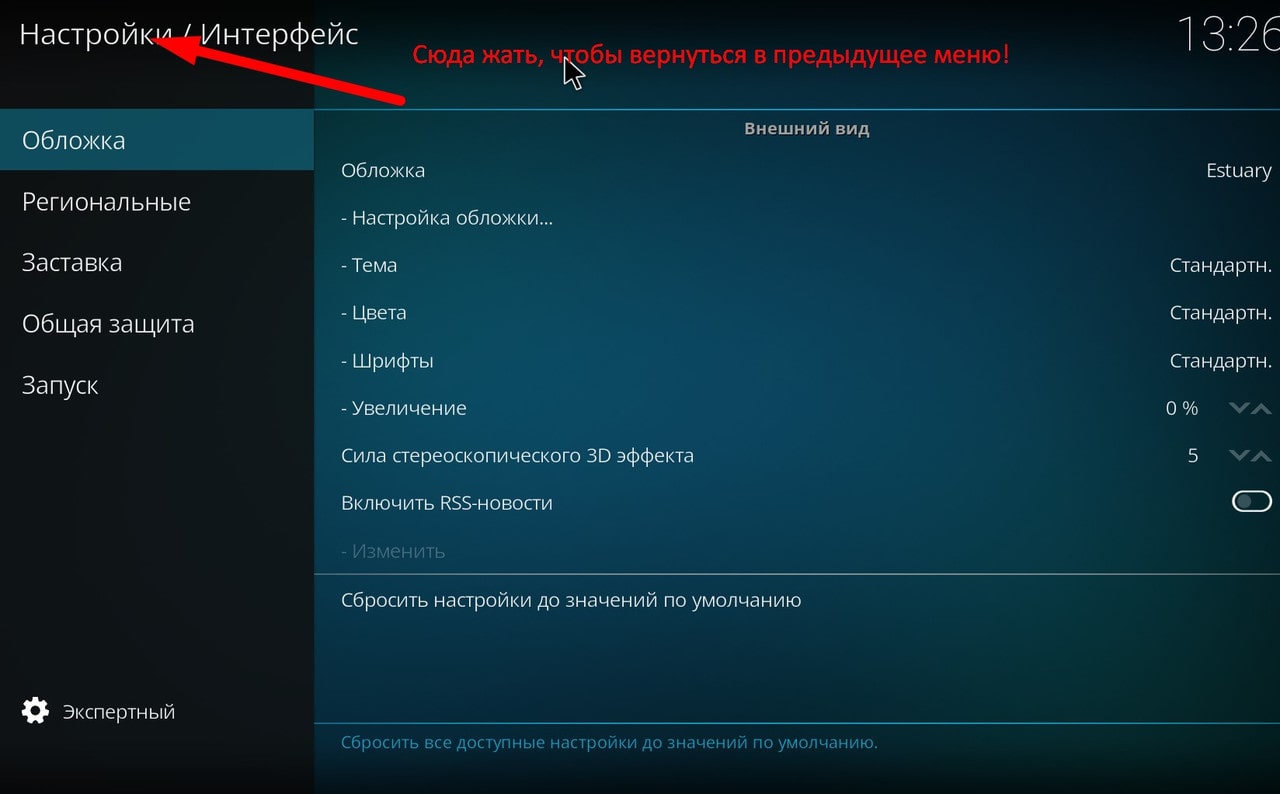
Return to the main Kodi menu and select Interface. Set the language to Russian for easier navigation. In the Regional menu, go to Languages and select Russian.
Back to the main menu. Under the “Player” tab, enable AutoFrameRate. Under the “Video” tab, in the playback menu, select “Adjust display refresh rate to match video”. It’s better to choose “Always”.
Main menu. “Add-ons” section:
- Addon repository. The “VideoPlayer InputStream” item. InputStream Adaptive. Install. Settings. Min. Bandwidth – 10000, Max. Bandwidth – 60000000.
- Video add-ons. To see the list, click “Browse add-ons”. YouTube. Install. No need to select anything. Everything will install automatically. Go to YouTube settings and adjust parameters. Minimum video quality 720p. Enable MPEG-DASH and set video quality to 4K. If HDR is supported, enable it. Authorize your YouTube account.
- Add-ons. Install from repository – PVR clients – PVR IPTV Simple Client. Install.
- Go to PVR IPTV client settings. In the link menu, enter IPTV links. Playlists can be obtained from the internet, e.g., tv (requires registration – code takes a long time to arrive).
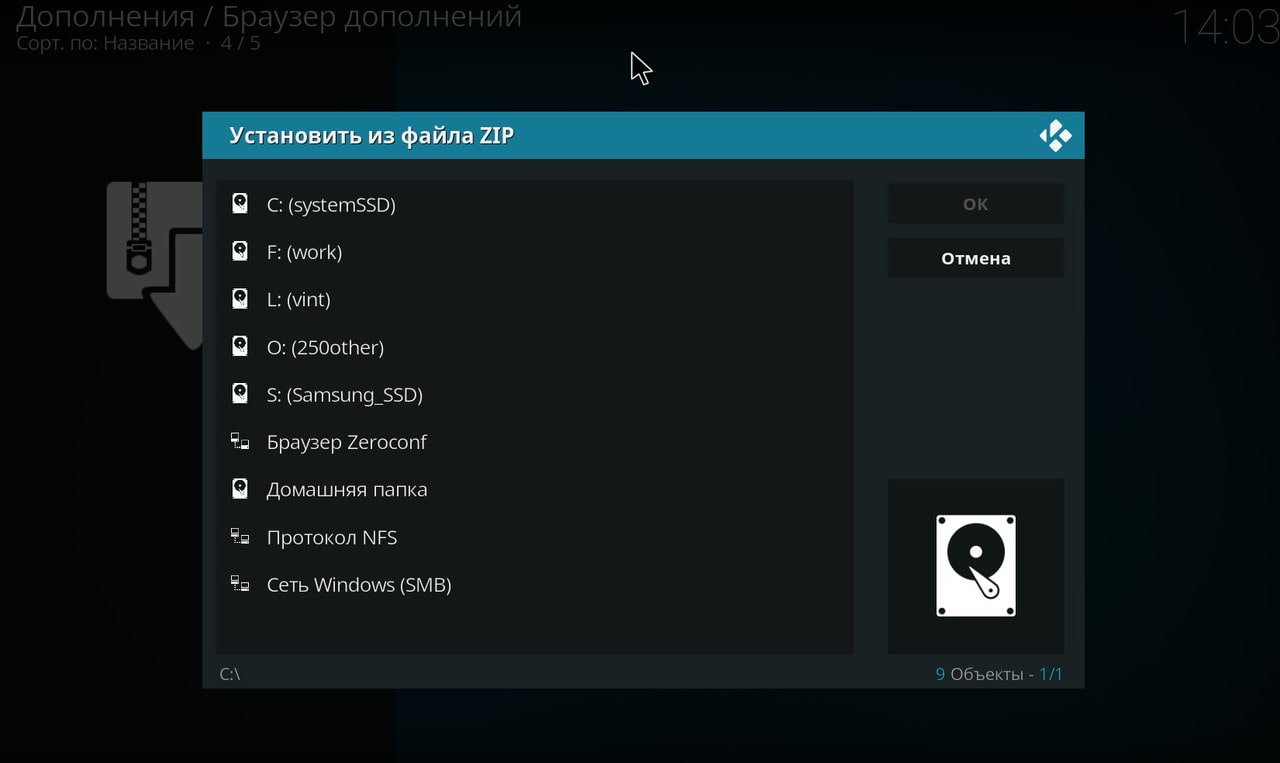
- Add-ons. Install from ZIP file. First, enable “Unknown sources” in settings. Here, install Nemiroff and Elementum plugins. If plugins ask for permission or module installation, agree. In plugin settings, go through the “Trackers” menu and connect the necessary ones for video viewing. Prioritize Russian-language resources. For trackers with authorization, enter credentials. If none, register on the resource.
- Fans of LostFilm should go to add-ons – services. And install TorrServer.
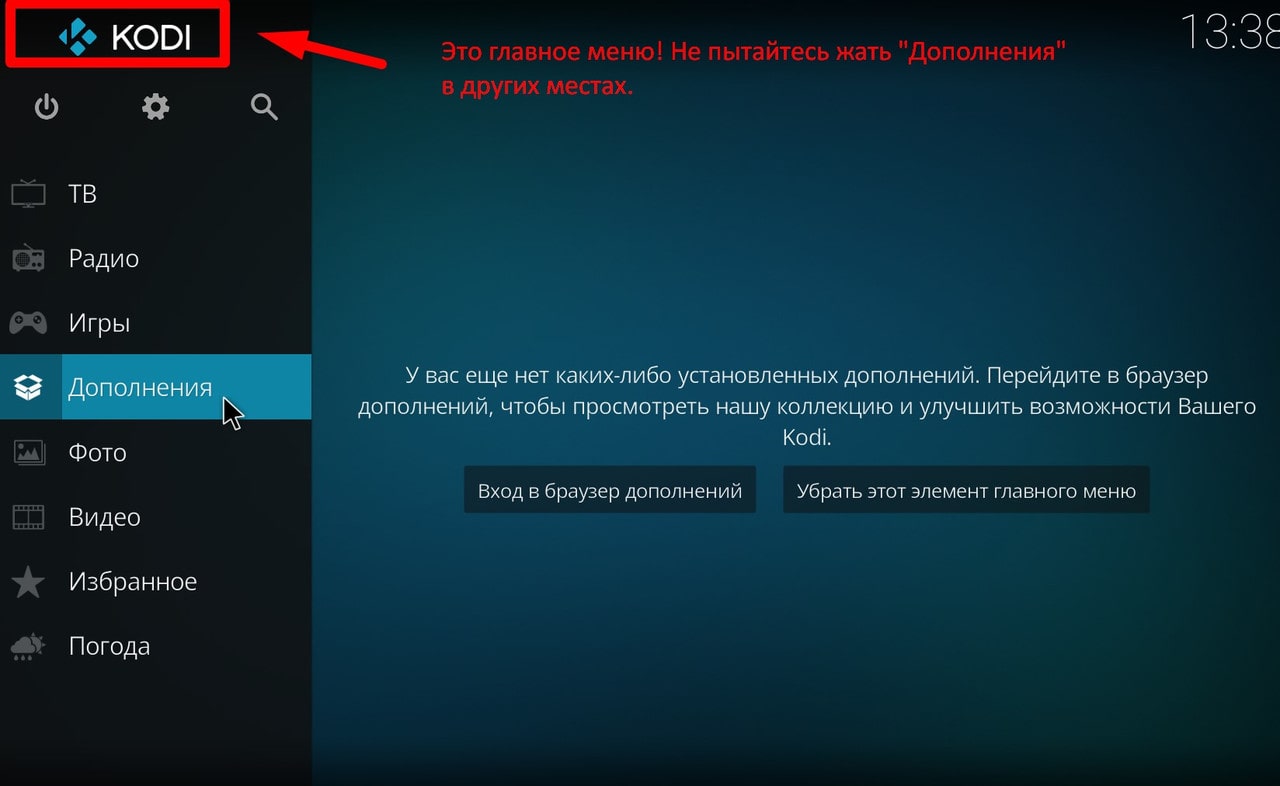
And that’s it. Now your PC is “loaded” for high-quality torrent and IPTV video viewing. You can lean back and enjoy.